
Introduction
TDM allows you to add external data sources that display real-time information within your presentations.
TDM supports the following external data sources:
-
Facebook
-
Twitter
-
Instagram
-
Yahoo Weather
-
Office 365 Calendar
-
Google Calendar
-
Flickr
-
Yammer
-
LinkedIn
-
Exchange
-
Power BI
-
NS
-
Axis (People Counter camera)
-
HikVision (People Counter camera)
This guide explains how to set up an Exchange data source in TDM.
Requirements
To set up an Exchange data source, you need:
-
Administrator access to the TDM Designer
-
An Exchange service account
-
Ensure the service account has access to the resources (e.g., calendars or rooms) you want to display
How to Set Up an Exchange Data Source
-
Log in to the TDM Designer with an administrator account:
https://designer.tdmsignage.com -
From the left-hand menu, select “Config Panel.”

-
Open the tab called “External Data.”
-
Click the “+” button on the right-hand side to create a new data source.

-
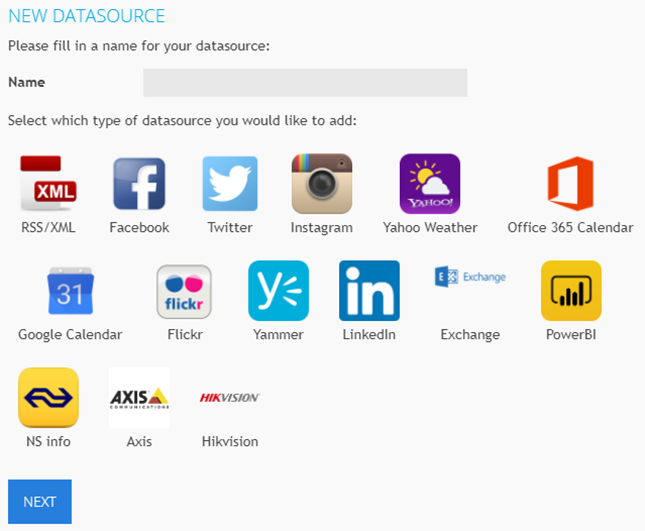
In the pop-up window, enter a name for your data source. Select “Exchange.” Click “Next.”
-
In the next window, fill in the required fields:
-
Username: The username of the Exchange service account.
-
Password: The password for that account.
-
Exchange URL: This must point to the
exchange.asmxfile on your Exchange server.Example:
https://exchange.server.com/ews/exchange.asmxReplace
<exchange.server.com>with the actual address of your Exchange server.-4.png?width=508&height=263&name=mceclip4%20(1)-4.png)
From the dropdown menu, choose whether you want to use:
-
A user calendar, or
-
A room resource
After selecting the desired type, click “Save.”
-
-
If you selected Calendars, choose the desired calendar from the list and click “Save.” If you selected Rooms, enter the room resource address and click “Save.”
You have now successfully created an Exchange data source in TDM.
You can repeat these steps if you wish to add multiple Exchange data sources for other accounts or rooms.