
Introduction
TDM Digital Signage supports Android devices, including Sony Bravia, Philips D-Line, and other Android players.
The installation method may vary depending on your device. This manual explains how to configure TDM Digital Signage for a Sony Bravia Android 8 display.
Requirements
If you want to install and use the TDM application on a Sony Bravia screen, you need to meet the following requirements:
-
Have administrator access to the TDM Designer.
-
Have a Sony Bravia display running Android 10.
How to Retrieve Your HTML5 License from the Designer
-
Log in to the Designer with an administrator account:
👉 https://designer.tdmsignage.com -
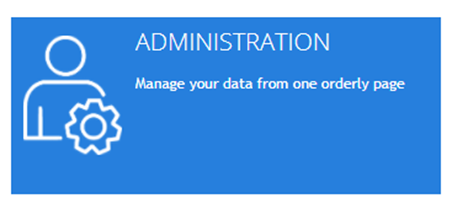
After logging in, you will be redirected to the Dashboard. Select Administration.
-
Open the tab labeled Licenses.
-
From the overview, locate your license key and select Show player URL to view it.

-
Only the last eight characters of the license URL are needed for the TDM Android Player. Example: If the URL ends with
.../license/xxxxxxxx, you only need “xxxxxxxx” (the part marked in red).
How to Configure the Sony Bravia with TDM Digital Signage
-
Start the Hotel/Pro Mode
-
On your remote, press the following buttons consecutively:
i+ > Mute > Vol+ > Home -
If done correctly, the Bravia will reboot, and a blue bar will appear at the top of the screen.
-
-
Adjust Power and Network Settings. Go to Settings > System > Power and Energy
-
Set Idle TV Standby to Off.
-
Go to Settings > Network & Internet > Home Network Setup > IP Control
-
Set Authentication to None.
-
Set Simple IP Control to On.
-
Install the TDM Android Player
-
Open the Google Play Store.
-
Log in or create a Google Account.
-
Use the search bar to look for “TDM Signage Native app.”

-
Select the app and download it onto your device.
-
Once installed, press Open to launch the TDM Android Player.
-
-
Activate Your License
-
Enter your license code (retrieved earlier from the Designer).
-
After entering the code, the device will automatically be added to your account.
-
From the Designer, assign a presentation to your device.
-
-
Configure Pro Mode
This mode restricts certain settings to prevent accidental or unauthorized changes.-
Go to Settings > Pro Settings > Developer Options
-
Enable Power state control by apps.
-
-
Go to Settings > Pro Settings > Apps
-
Allow TDM Android Player.
-
-
-
(Optional) Enable Bravia Web Control
This feature allows you to manage display settings remotely when connected to the same network. -
Start Pro Mode
-
Navigate to Settings > Pro Settings > Start Pro Mode.
-
The display will reboot, and after restarting, the TDM Android Player will launch automatically.
-
You have now successfully configured your Sony Bravia for use with TDM Digital Signage.
You can now assign and display presentations directly from the TDM Designer.