
Introduction
TDM Digital Signage supports Android devices such as Sony Bravia, Philips D-Line, and other Android players.
The installation method for your device may vary. This manual explains how to configure TDM Digital Signage for the Sony Bravia Android 8 display.
Requirements
If you want to install and use the TDM application on a Sony Bravia screen, you need to meet the following requirements:
-
Have administrator access to the TDM Designer.
-
Have a Sony Bravia display running Android 8.
How to Retrieve Your HTML5 License from the Designer
-
Log in to the Designer with an administrator account:
👉 https://designer.tdmsignage.com -
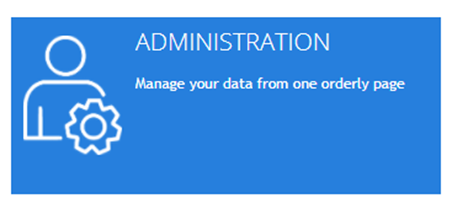
After successfully logging in, you will be redirected to the Dashboard. On the dashboard, select Administration.
-
Open the tab called Licenses.
-
From this overview, locate your license key and select Show player URL to view the license key.

-
Please note that you only need to enter the last eight characters of the URL into the TDM Android Player. Example: In the example below, this is “xxxxxxxx” (marked in red).

How to Configure the Sony Bravia with TDM Digital Signage
-
Start the Hotel/Pro Mode
-
Press the following button combination on your remote (one after another, not simultaneously):
i+ > Mute > Vol+ > Home -
If entered correctly, the Bravia will automatically reboot, and a blue bar will appear at the top of the display.
-
-
Adjust Power and Network Settings. Go to Settings > Power > ECO
-
Set Idle TV Standby to Off.
-
Go to Settings > Network > Home Network Setup > IP Control
-
Set Authentication to None.
-
Set Simple IP Control to On.
-
Install the TDM Android Application
Now we can continue with the installation of the TDM Android application. There are multiple ways to install the application.
The most common method for Sony Bravia is by downloading it from the Google Play Store.
Please see the article ‘How to Install the TDM Android Player Application’ for alternative installation options.
In this manual, we will use the Google Play Store. -
Go to the Google Play Store.
-
Log in or create a Google Account.
-
Use the search bar to look for “TDM Signage Native app.”

-
Select the application and download it onto your device. Once downloaded, select Open to launch the TDM Android Player.
-
Activate Your License
-
Enter the license code found in the TDM Designer.
-
If you have not yet retrieved it, please follow the steps described in the previous section.
-
Once you have entered the license code, the device will be added to your account.
-
From the TDM Designer, you can assign a presentation to your device.
-
-
Configure Pro Mode
The Pro Mode limits various settings to prevent unauthorized changes via remote control or mobile devices.
This ensures TDM can start automatically and control display power. -
Go to Settings > Pro Settings > Developer Options.
-
Enable Power state control by apps.
-
Go to Settings > Pro Settings > Apps.
-
Enable TDM Android Player.
-
Start Pro Mode
-
Navigate to Settings > Pro Settings > Start Pro Mode.
-
The display will reboot, and after restarting, TDM Digital Signage should launch automatically.
-
You have now successfully configured your Sony Bravia for use with the TDM Android Player.
You can now assign a presentation to your device directly from the Designer.