Introduction
With TDM Digital Signage, you can create custom resolutions that can be used for your templates and masterpage designs.
This allows you to design content for displays with non-standard or unique resolutions, such as video walls or tiled screen setups.
This guide explains how to add a custom resolution and how to make it available for use in your designs.
Requirements
To add custom resolutions, you need:
-
Administrator access to the TDM Designer
How to Add Custom Resolutions
-
Log in to the Designer:
https://designer.tdmsignage.com -
Select Config Panel from the left-hand menu.

-
Open the tab Resolutions.
.png?width=155&height=45&name=mceclip1%20(1).png)
-
Click Add Resolution to create a new custom resolution.
-
In the pop-up window, fill in the following details:
-
Name: The name of your resolution (e.g. Video Wall 4K)
-
Width: The width in pixels (e.g. 1920)
-
Height: The height in pixels (e.g. 1080)
Once all details are entered, click Save.
-
-
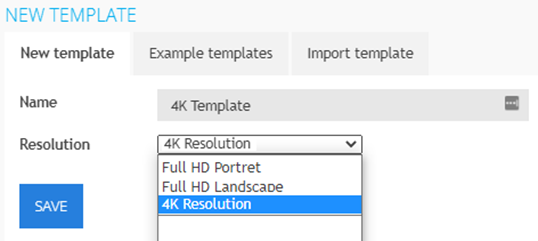
Your custom resolution will appear in the list. You can reorder resolutions using the three stripes in front of each name. The order here determines how they appear in the resolution dropdown when creating new content.

-
Your custom resolution is now ready to use when creating new templates or masterpages in TDM.