
Introduction
In some cases, you may notice that the subject field on your displays shows the organizer’s name instead of the actual meeting subject, or that details from private meetings are visible.
These settings, known as room properties, can only be configured using PowerShell.
This guide explains how to configure these properties correctly.
Note: All commands that must be entered into PowerShell are shown in bold for clarity.
Requirements
To configure room properties using PowerShell, you need:
-
Administrator permissions for your Office 365 environment
-
Basic knowledge of PowerShell
How to configure Office365 room properties with PowerShell
- Search for PowerShell on your local machine, right mouse click the icon and run it as an administrator

- Enter the following command:
$UserCredential = Get-Credential
A pop-up will open, please enter your Office365 credentials with administrator permissions.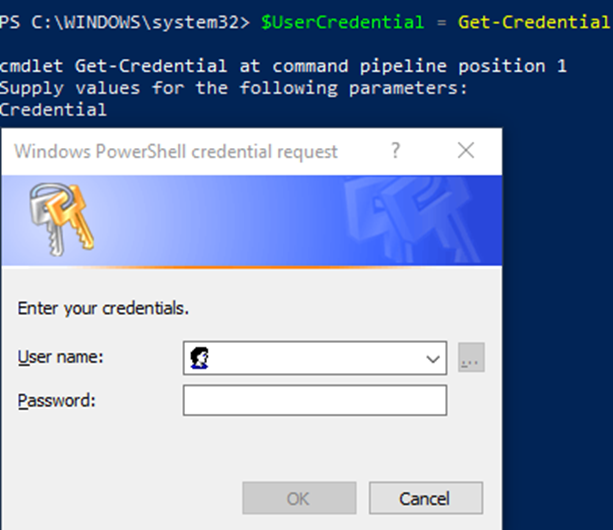
- Enter the following command:
$Session = New-PSSession -ConfigurationName Microsoft.Exchange -ConnectionUri https://outlook.office365.com/powershell-liveid/ -Credential $UserCredential -Authentication Basic –AllowRedirection - Afterwards enter the following command:
Import-PSSession $Session –DisableNameChecking - Now you are able to look into the properties of your rooms. To check the properties please use the following command:
Get-CalendarProcessing -Identity <EmailAddressOfTheRoom> | FL
You will see the following screen:
- To configure the room correctly please use the following command (please change the <EmailAddressOfTheRoom> with the proper name of the room):
Set-CalendarProcessing -Identity <EmailAddressOfTheRoom> -DeleteSubject $false -AddOrganizerToSubject $false -DeleteComments $false -RemovePrivateProperty $false
-DeleteSubject: If this option is enabled it will remove the original subject from the appointments.
-AddOrganizerToSubject: if this option is enabled it adds the organizer to the subject value.
-DeleteComments: Disabling this option guarantees that the description for the appointment is retained.
-RemovePrivateProperty: If this option is enabled it will remove the private property from the appointments, making the contents visible again.