
Introduction
TDM Digital Signage supports Android devices such as Sony Bravia, Philips D-Line, and other Android players.
The installation method may vary depending on your device. This manual explains how TDM Digital Signage can be configured for the Philips D-Line display.
Requirements
If you want to install and use the TDM app on a Philips screen, you need to meet the following requirements:
-
Have administrator access to the TDM Designer.
-
Have a Philips display running Android 7 or higher.
How to Retrieve Your HTML5 License from the Designer
-
Log in to the Designer with an administrator account:
👉 https://designer.tdmsignage.com -
After successfully logging in, you will be redirected to the Dashboard. On the dashboard, select Administration.
-
Open the tab called Licenses.
-
From this overview, locate your license key and select Show player URL to view the license key.

-
You only need to enter the last eight characters of the URL into the TDM Android Player. Example: In the example below, this is “xxxxxxxx” (marked in red).

How to Retrieve the Latest Version of the TDM Android Player
-
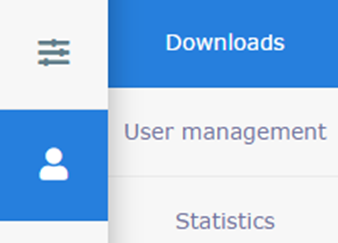
Download the .APK file from the TDM Designer: Go to Administration > Downloads.
-
Select TDM Native Android Player — the APK file will automatically download.

-
Copy the .APK file to a USB stick.
How to Configure the Philips D-Line Display with TDM Digital Signage
-
Power on your Philips display.
-
Select your language and press Start to continue.
-
Choose your preferred network connection: Ethernet (wired) or Wireless (Wi-Fi), then press Next.
-
Select Finish to return to the Source menu.
-
Insert the USB storage device containing the TDM Android app (the APK file must be extracted to the root of the USB drive).
-
On your remote control, press Home, then 1, 8, 8, 8. If asked for a password, enter the default code: 1234.
-
In the Admin Mode menu, select Apps.
-
Navigate to File Manager and select Open.
-
Go to MNT Folder → Open.
-
Go to usb_storage Folder → Open.
-
Locate and open the TDM Android app (APK file).
-
Select Install.
-
Once the installation is complete, select Done.
-
Press the Return key on your remote to go back to the Admin Menu.
-
Navigate to Settings → select Open.
-
Select Signage Display.
-
Choose Custom App.
-
Select the TDM Android app.
-
Press Save.
-
Go to Signage Display / Digital Signage > Server Settings.
-
Enable ADB over network by checking the box.
Configure Time Zone Settings
-
Navigate back to Settings.
-
Go to Date and Time Settings.
-
Ensure the correct time zone is set for your player.
-
Press the Home button on your remote.
-
Navigate to Advanced Configuration → Date and Time.
-
Select Daylight Saving Time.
-
Make sure the daylight-saving settings are correct for your region.
Enable Power On/Off Functionality
-
Press Home on your remote.
-
Go to Advanced Options > Power Save.
-
Enable Mode 4 — this allows the display to be powered on or off via TV schedules configured in TDM.
You have now successfully configured your Philips D-Line display for use with the TDM Android Player.