
Introduction
With version 4.4 of TDM Digital Signage, it is possible to use the TDM player as your screensaver. This allows you to display custom content on all workstations within your company when they are not in use. The screensaver player supports all elements, meaning there are no content restrictions compared to regular digital signage usage.
The screensaver player works using a push mechanism. This means the screensaver player does not connect to the TDM platform to check for content updates automatically. This setup helps to reduce network traffic generated by the screensaver players.
This manual explains how to configure the screensaver player and how to push content to it.
Requirements
To configure the screensaver player in the Designer, you need to meet the following requirements:
-
Have administrator access to the TDM Designer
How To Configure the Screensaver Player in the Designer
In this section, we explain how to configure the screensaver player and push content to it. Please note that version 4.4 or higher is required to use this feature.
-
Log in to the Designer with an administrator account: https://designer.tdmsignage.com
-
Once logged in, select Player Overview.

-
In the tab Players, you will find all signage players. In the tab Screensaver Players, you will find all your screensaver players. Open the Screensaver Players tab.

-
On the left side, you will find the screensaver players; on the right side, you can see and create groups.

-
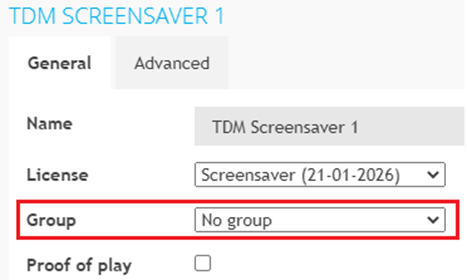
You can link a device to a group by selecting the device and choosing the group from the drop-down menu.
-
To assign a presentation to your screensaver player, go to Content Creation > Presentations.

-
Select the presentation you want to assign to your screensaver player.

-
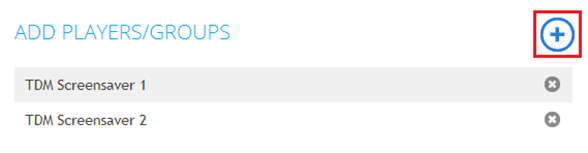
On the right side, you can add a player to the presentation.
-
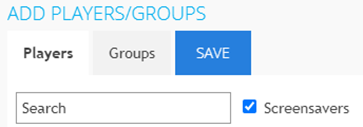
By default, signage players are displayed. To view screensaver players, tick the box Screensavers. You can also add a group to a presentation — if you do, all players in that group will display the presentation.
-
The last step is to push content to your screensaver player. This can be done from the Player Overview. Open the Config Panel and select the Screensaver Players tab.

-
Behind each player or group, you will find a Push Content button. When you press this button, the screensaver player will receive a notification that updated content is available. The screensaver player will download the updated content once it becomes active again.

You have now successfully configured your screensaver player.