
Introduction
With TDM, you can connect various external data sources to display real-time information within your presentations.
TDM supports the following external data sources:
-
Facebook
-
Twitter
-
Instagram
-
Yahoo Weather
-
Office 365 Calendar
-
Google Calendar
-
Flickr
-
Yammer
-
LinkedIn
-
Exchange
-
Power BI
-
NS
-
Axis (People Counter camera)
-
HIKVision (People Counter camera)
This guide explains how to create a Facebook data source.
Note: TDM refreshes external data every five minutes. This means that new posts may take up to five minutes to appear on your displays.
Requirements
To create a Facebook data source, you need:
-
Administrator access to the TDM Designer
-
Access to a Facebook account
How to Create a Facebook Data Source
-
Log in to the TDM Designer using an administrator account:
https://designer.tdmsignage.com/ -
Open the “Config Panel” from the menu on the left side of the designer.

-
Select the “External Data” tab to open your data source overview.
-
Click the “+” button on the right side to create a new data source.

-
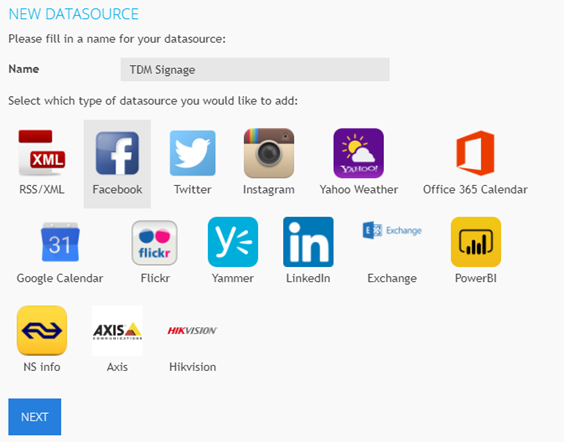
Enter a name for your data source and select “Facebook”. Once completed, click “Next.”
-
Click “Login” to open the Facebook login pop-up.

-
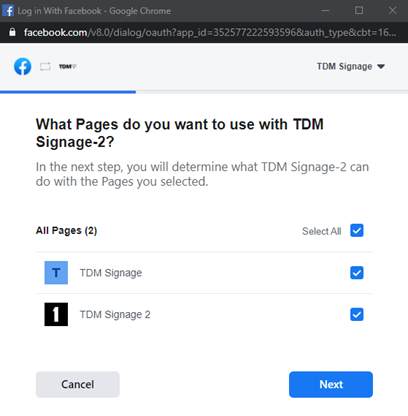
Enter your Facebook credentials and follow the steps to select the page(s) you want to connect with TDM Signage. If you don’t have a page yet, Facebook will prompt you to create one.
-
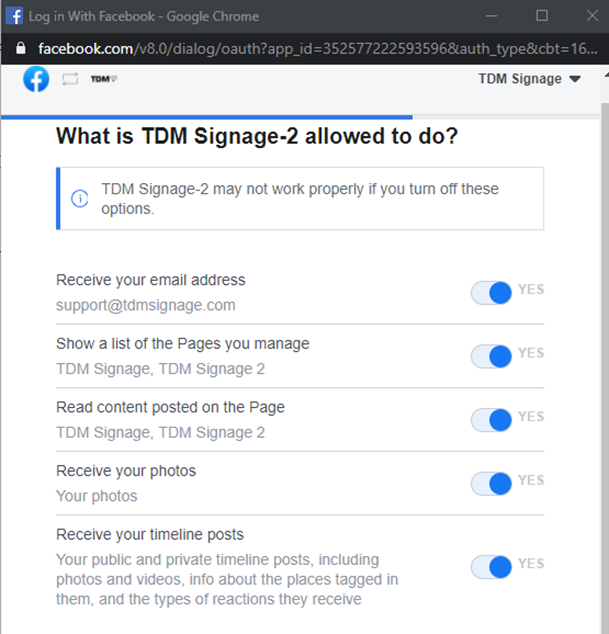
Configure the permissions for TDM Signage:
-
Receive your email address – Allows TDM Signage to access your Facebook email address.
-
Read content posted on the Page – Enables TDM Signage to read your page posts.
-
Read user content on your Page – Grants access to user-generated content posted on your page.
-
Receive your photos – Allows TDM Signage to access photos from your page.
-
Receive your timeline posts – Lets TDM Signage display posts from your page timeline.
-
-
Once you have configured these options, click “Done.” You have now linked TDM Signage to Facebook. Click “OK” to complete the process. Select the Facebook page you want to use for your data source, then click “Save.”
You can use the eye icon in front of the data source to preview the information retrieved from your Facebook page.

You have successfully created a Facebook data source in TDM.
You can now use this connection to display your latest posts, images, and other Facebook content in your signage designs.