
Introduction
With TDM Digital Signage, you have the ability to link a master page to your presentation.
However, in some situations, you may not want to display all master page elements on certain pages — for example, when using a full-screen video.
To address this, TDM includes an option to disable master page elements for specific pages.
This guide explains how to disable those elements as needed.
Requirements
If you want to disable master page elements for specific pages, you need to meet the following requirements:
-
Have access to the presentation where you want to disable master page elements.
How to Disable Master Page Elements for Specific Pages
-
Log in to the Designer with an administrator account:
👉 https://designer.tdmsignage.com -
Go to Content Creation > Presentations.
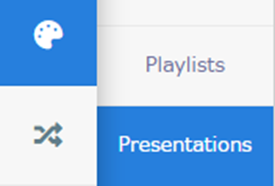
-
Select the presentation where you want to disable master page elements.

-
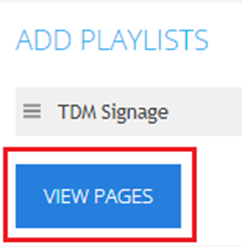
Click the View Pages button.
-
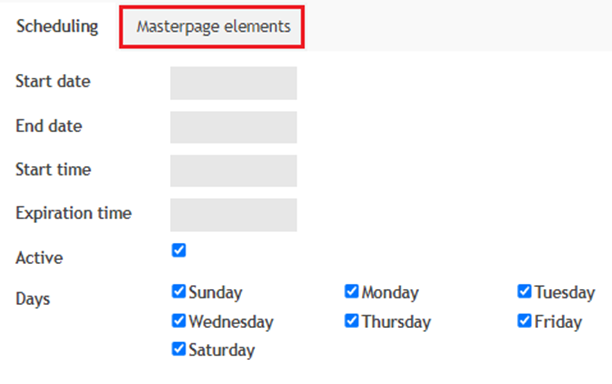
You will see an overview of all pages linked to your presentation. Select a page — a pop-up window will open. In the pop-up, select the tab called Masterpage Elements.
-
In this tab, you’ll see a list of all master page elements linked to your presentation. Check the boxes next to the elements you want to disable for this specific page.
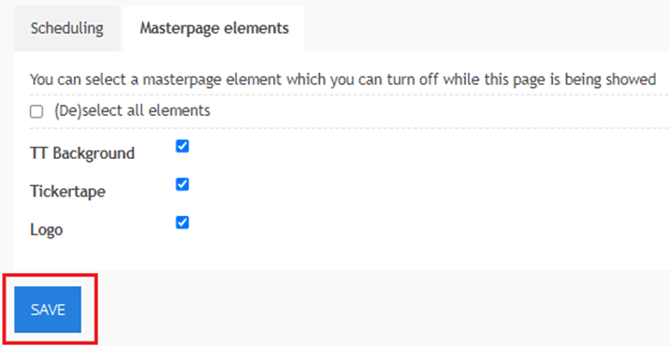
Once finished, press Save to apply your changes.
You have now successfully disabled master page elements for a page.
Repeat this process for any additional pages as needed.