
Introduction
TDM is a cloud-based digital signage platform that can be fully managed and configured from your web browser.
This manual provides step-by-step instructions on how to install TDM on your Tizen display and publish content.
If you encounter any difficulties, our support team is always available to help — whether you are a new or existing TDM user.
You can find our contact details here: https://www.tdmsignage.com/contact/
Requirements
To install TDM on your Tizen display, you need:
-
Administrator access to the TDM Designer
-
A display running Tizen OS
-
Minimum 4GB of available storage
-
Minimum 1GB of memory
-
Wi-Fi or Ethernet connection (Ethernet recommended for Full HD content)
Supported Functions
| Function | Player Version | Non-Player Version | Android Version | Tizen Version |
|---|---|---|---|---|
| Video upload | ✓ | ✗ | ✓ | ✓ |
| YouTube | ✓ | ✓ | ✓ | ✓ |
| PDF integration | ✓ | ✓ | ✓ | ✓ |
| PowerPoint integration | ✓ | ✓ | ✓ | ✓ |
| Twitter integration | ✓ | ✓ | ✓ | ✓ |
| Instagram integration | ✓ | ✓ | ✓ | ✓ |
| Facebook integration | ✓ | ✓ | ✓ | ✓ |
| Websites | ✓ | ✓ | ✓ | ✓ |
| Flash | ✓ | ✗ | ✗ | ✗ |
| Silverlight | ✓ | ✗ | ✗ | ✗ |
| Streaming Video | ✓ | ✓ | ✓ | ✓ |
| Streaming Audio | ✓ | ✓ | ✓ | ✓ |
| Weather feed | ✓ | ✓ | ✓ | ✓ |
| Dynamic text | ✓ | ✓ | ✓ | ✓ |
| External data (RSS/XML) | ✓ | ✓ | ✓ | ✓ |
| Media RSS | ✓ | ✓ | ✓ | ✓ |
| TV-channels (Sony only) | ✗ | ✓ | ✓ | ✗ |
| Local caching* | ✓ | ✗ | ✓ | ✓ |
| Ticker tape | ✓ | ✓ | ✓ | ✓ |
| Plan module (scheduling) | ✓ | ✓ | ✓ | ✓ |
| Bandwidth-efficient** | ✓ | ✗ | ✓ | ✓ |
| Monitoring | ✓ | ✓ | ✓ | ✓ |
| RS232 commands | ✓ | ✗ | ✗ | ✗ |
| Touch functionality | ✓ | ✓ | ✓ | ✓ |
| Interactivity | ✓ | ✓ | ✓ | ✓ |
| Spectator statistics*** | ✓ | ✗ | ✗ | ✗ |
| Offline mode | ✓ | ✗ | ✓ | ✓ |
* Local caching** ensures presentations continue playing even if your internet connection drops (not applicable to live streams).
** TDM players are bandwidth-efficient — content is downloaded once and stored locally, reducing data usage.
*** Spectator statistics require a Full HD camera and additional software, available via the Downloads section in the Designer.
Retrieving Your HTML5 License from the Designer
-
Log in to the Designer: https://designer.tdmsignage.com
-
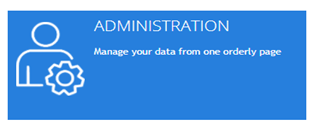
From the Dashboard, select Administration.
-
Open the Licenses tab.

-
Find your license key and click Show Player URL.

-
You only need to enter the last eight characters of the license URL into the TDM Player (highlighted in red in your example).

Installing TDM on Your Tizen Display
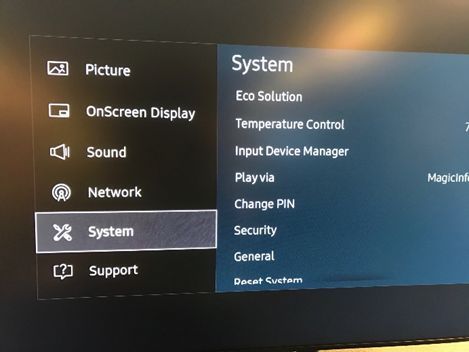
- After running the default configuration, the screen will be set to use MagicInfo. We need to change this to URL Launcher. To do this, switch on your Tizen device and press the Menu button. In the menu, navigate to the System options.
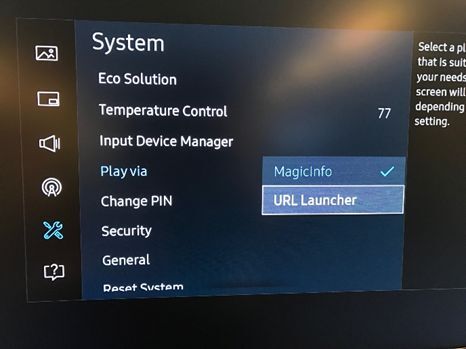
- In the settings menu, navigate to Play via and select URL Launcher. We are now able to configure the TDM app. Press the Back button until you return to the normal input screen.
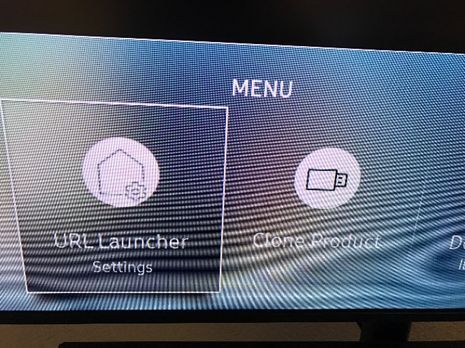
- Tizen displays are required to download an app through a URL Launcher. To enter this URL, press the Home button. In this menu, you should see the option URL Launcher - Settings. Open this option.
- There are two versions available for the Tizen app — one version for landscape mode and one version for portrait mode. The URLs for the apps are:
Landscape version: http://tizen.tdmsignage.com/v1/
Portrait version: http://tizen.tdmsignage.com/portrait/
Enter the corresponding URL in the Install Web App field and select OK.
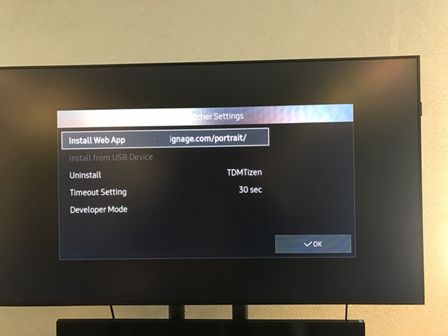
- Once you have done this, the display will start downloading and installing the app. When the installation is complete, a pop-up will appear asking for your license code. Enter your license code in the field and click Save.
After clicking Save, the app will start retrieving content and will appear in your TDM Designer as a player.
All you need to do now is assign your player to one of your presentations. You can find instructions on how to do this on page 26 of the TDM Designer manual: https://tdmsignage.com/downloads/
The status icon will then display as green. Like PC and HTML5 player licenses, a Tizen license can only be used on one device.
Once assigned, the player’s status icon will turn green.
Note: A Tizen license, like PC and HTML5 licenses, can only be used on one device.