
Introduction
With version 4.4 of TDM Digital Signage, it is possible to use the TDM player as your screensaver. This allows you to display custom content on all workstations within your company when they are not in use. The screensaver player supports all elements, meaning there are no restrictions regarding content usage compared to normal signage.
The screensaver player works with a push mechanism. This means the screensaver player will not connect to the TDM platform to check for updated content automatically. This approach helps to limit network traffic generated by the screensaver players.
This manual explains how to install the screensaver player across your network using the command line.
Requirements
If you want to use the screensaver player, you need to meet the following requirements:
-
Have administrator access to the TDM Designer
-
Have an active screensaver license within your TDM account
-
Have a Windows-based machine that meets the specifications below
Preferred specifications for your Windows-based machine:
-
Operating system: Windows 10 (including embedded versions)
-
Processor: Core i3 or higher
-
Memory: 4 GB
-
Video memory: 1024 MB
-
Wi-Fi or cable internet connection*
-
Administrator rights (for installation)
*A cable connection is recommended for displaying Full HD content.
How To Install the TDM Screensaver Player
In this section, we explain how to install the screensaver player. You will need the installation file, which can be downloaded from your TDM account. Please note that version 4.4 or higher is required to use the screensaver player.
-
Log in to the Designer with an administrator account: https://designer.tdmsignage.com
-
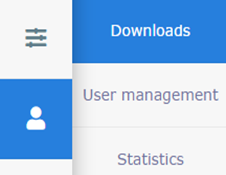
Once logged in, select Administration > Downloads.
-
From here, download the setup file called “PC Player Vx.x Full Setup”. The latest version is always listed at the top.
-
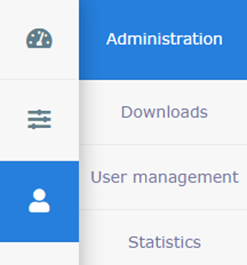
You will also need your registration data, which can be found in the Designer under Administration.
-
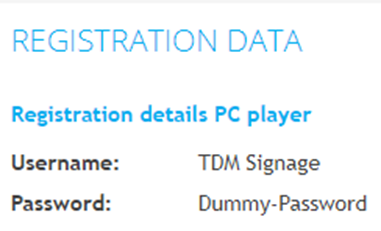
In the Registration Data section, copy the username and password, as they will be required during installation.
-
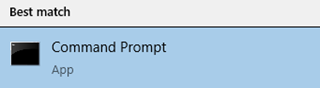
Now you can continue with the installation of the TDM software. To configure the TDM software as your screensaver, some additional settings need to be applied. The installer can automatically configure these using the Command Prompt. Open the Command Prompt by searching for cmd in the Start menu.
-
Once the Command Prompt has started, navigate to the folder where the installation file is located. For example:
cd c:\tools\installers\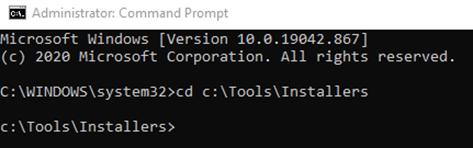
If your installation file is located elsewhere, replace the path accordingly. -
Now run the installer with the following parameters:
"TDM Player Setup.exe" /screensaver=true /regusr="<username>" /regpwd=<password> /SUPPRESSMSGBOXES /SILENT
Replace<username>and<password>with the credentials retrieved from the Designer.
Note: The setup file name may differ from the example above. If it does, adjust the name in the command accordingly. Once the command is executed, the setup will begin installing the software. -
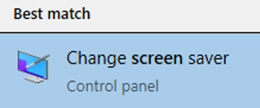
After the installation is complete, TDM will be configured as your default screensaver. You can verify this in the Screensaver Settings. Open the Start menu, search for Screensaver, and open the settings.
-
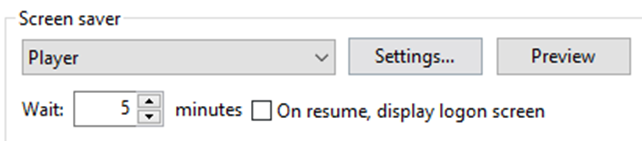
The screensaver should be set to Player. In this menu, you can also adjust the amount of time before the screensaver starts. You can use the Preview button to manually start the screensaver player, or wait for it to start automatically after the configured time.
The player will register the first time it starts. A license will be assigned automatically if a valid screensaver license is available. After this, your device will appear in the Screensaver Player Overview.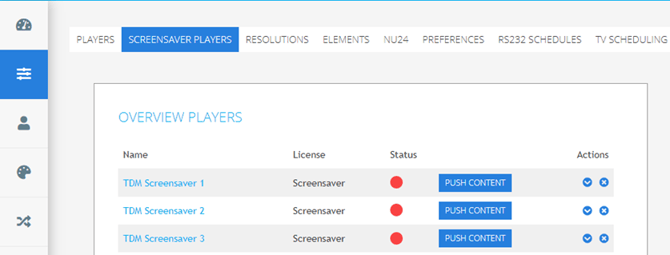
You have successfully installed the screensaver player. The only remaining step is to assign a presentation to your device.
Good to know: The screensaver player works with a push mechanism, meaning it does not connect to the TDM platform automatically to check for updated content. This reduces network traffic generated by the screensaver players.
When content is updated, the screensaver player must be notified manually. You can do this by pressing the Push Content button located in the Screensaver Players tab.