
Introduction
TDM Digital Signage supports Android devices, such as Sony Bravia, Philips D-Line, or Android media players. The installation method depends on your device. This manual explains the different workflows that can be followed to install the TDM Android Player on your device.
Please note that TDM also offers device-specific manuals describing the installation process in detail. These manuals are available for Sony Bravia, Samsung (Tizen OS), and Philips D-Line displays.
Requirements
If you want to install the TDM Android Player, you need to meet the following requirements. Please note that you must meet one of the additional requirements to install the Android application:
-
Have administrator access to the TDM Designer
-
Have active HTML5 licenses within your TDM account
-
(Additional) Have access to the Google Play Store
-
(Additional) Have a USB stick with the TDM Android Player APK file on it
-
(Additional) Have ADB installed on your PC and enabled on your device (please note that both your PC and display need to be on the same network)
How To Retrieve My HTML5 License from the Designer
-
Log in to the Designer with an administrator account: https://designer.tdmsignage.com
-
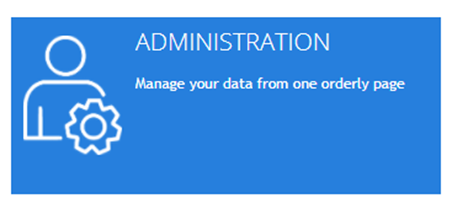
After successfully logging in, open the main dashboard and select Administration.
-
Open the tab called Licenses.
-
From this overview, you can find your license key. Select Show player URL to view the license key.

-
Please note that you only need to fill in the last eight characters of the URL into the TDM Android Player. For example, in the URL shown below, use “xxxxxxxx” (marked in red).

How To Install the TDM Android Player Using the Google Play Store
-
Switch on your Android device.
-
Locate and open the Google Play Store application.
-
In the Play Store, search for “TDM Signage Native App.”

-
Select the application and download it onto your device. Once the download has finished, select Open to launch the TDM Android Player.
-
Enter the license code found in the Designer. If you haven’t retrieved it yet, please follow the steps described in the previous section.
How To Install the TDM Android Player Using a USB
Important: Your device must have a file explorer application available to access the USB drive.
If not, an app called “APK Installer” may also allow you to access your USB drive and install the .apk file.
-
First, download the
.apkfile from the Designer: Go to Administration > Downloads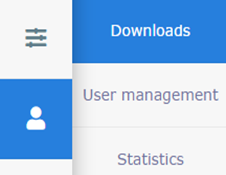
-
Select “TDM Native Android Player.” The APK file will then be downloaded.

-
Copy the
.apkfile to a USB stick. -
Plug the USB stick into your device.
-
Use a File Explorer or APK Installer app to access the USB drive.
-
If your device does not have access to the Google Play Store, it likely has a file explorer pre-installed.
-
If not, you can install ES File Explorer from the Google Play Store (if available).
-
-
Open the file explorer and navigate to the USB drive.
-
Locate the
.apkfile and select it to install the TDM Android Player. -
Once the installation is complete, you should see the TDM Android Player in your app overview.
-
Launch the app. The TDM Android Player will prompt you to enter your license.
-
If you haven’t retrieved your license code yet, please follow the steps described in the earlier section.
-
How To Install the TDM Android Player Using ADB
-
Ensure the following option is enabled on your device:
Settings → Developer Options → ADB Debugging / USB Debugging -
If Developer Options is not visible:
-
Go to Settings → About → tap Build Number seven times.
-
Once Developer Options appear, repeat Step 1.
-
-
Verify your device’s IP address:
Settings → About → Status. -
Download the Google Platform Tools, which include the ADB tool needed to install the TDM Android Player.
-
Once downloaded, move the
.zipfile to the root of your C: drive and extract it. -
Download the
.apkfile from the Designer:-
Go to Administration > Downloads
-
Select “TDM Native Android Player.”
-
-
Move the downloaded
.apkfile into the platform-tools folder that was created after extracting the Google Platform Tools. -
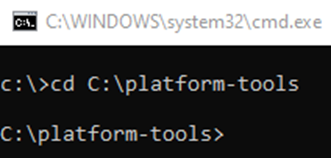
Open the folder in Command Prompt and run the following command:
cd C:\platform-tools(If your folder is in a different location, adjust the path accordingly.)
-
To view connected devices, run:
adb devices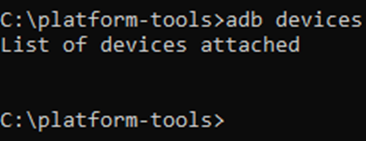
-
If your device is not listed, connect manually with:
adb connect <ip_address_of_your_device>
If ADB prompts about port 5555, use:adb connect <ip_address_of_your_device>:5555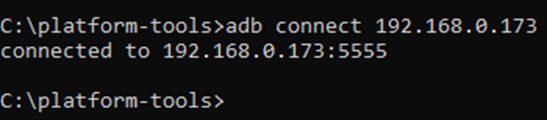
-
To install the
.apkfile, run:adb -s <ip_address_of_device> install <filename>.apk
To update an existing installation, use:adb -s <ip_address_of_device> install -r <filename>.apk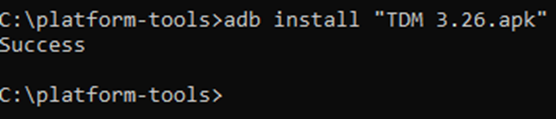
-
Once the command prompt returns “Success”, the TDM Android Player has been successfully installed on your device.