
Introduction
TDM Digital Signage supports the use of Windows-based machines, which can be used to display signage content created within the Designer. To display this content, you need to install the TDM PC Player.
This guide explains how to install the TDM PC Player step by step.
Requirements
To install the PC Player, you need to meet the following requirements:
-
Have administrator access to the TDM Designer
-
Have an active PC license within your TDM account
-
Have a Windows-based machine that meets the specifications below
Preferred specifications for your Windows-based machine:
-
Operating system: Windows 10 (including embedded versions)
-
Processor: Core i3 or higher
-
Memory: 4 GB
-
Video memory: 1024 MB
-
Wi-Fi or cable internet connection*
-
Administrator rights (for installation)
*A cable connection is recommended for displaying Full HD content.
How To Install the TDM PC Player
In this section, we explain how to install TDM on your computer or screen. If you are using the player version, you will need an installation file that can be downloaded from your TDM Designer.
-
Log in to the Designer with an administrator account on your Windows-based machine:
https://designer.tdmsignage.com -
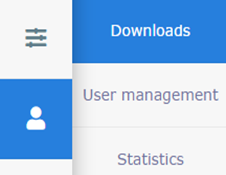
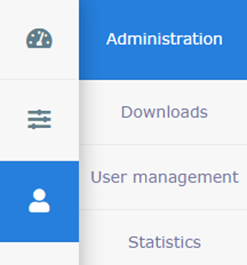
Once logged in, select Administration > Downloads.
-
From here, download the setup file called “PC Player Vx.x Full Setup”.
(The latest version is always displayed at the top.) -
Launch the downloaded setup file on your Windows-based machine to begin the installation.
-
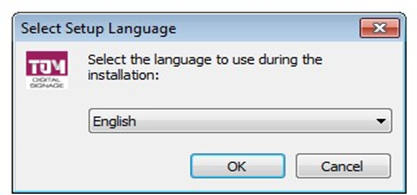
Select the required setup language and click OK.
-
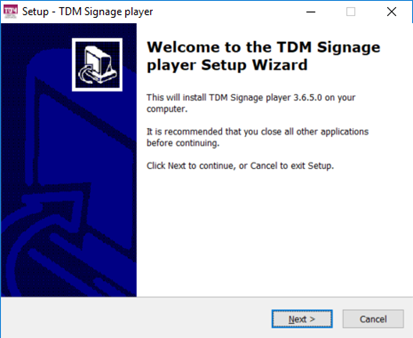
Read the instructions and click Next.
-
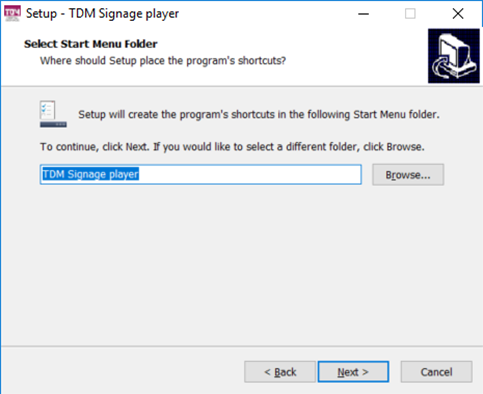
Choose an installation folder if needed. If you do not want to change the default directory, click Next.
-
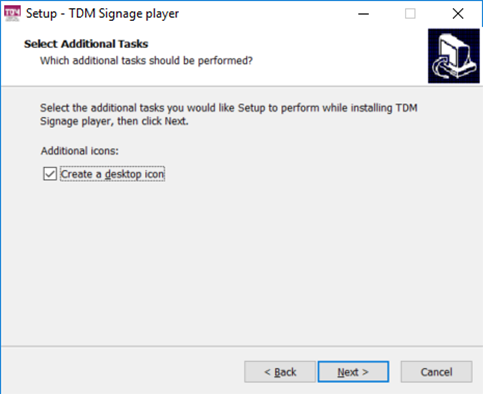
If you would like to add a shortcut to your desktop, select this option and click Next.
-
Click Install to begin the installation.
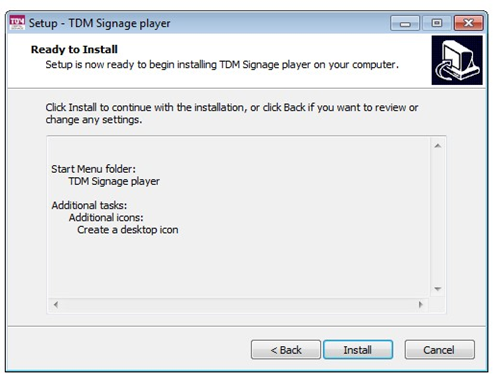
Depending on your computer’s speed, installation may take up to 15 minutes. -
Once installation is complete, click Complete.
The TDM Player will now launch and ask you to enter your registration details.
How To Register the TDM PC Player
-
In TDM Designer, go to Administration > Registration Data.
-
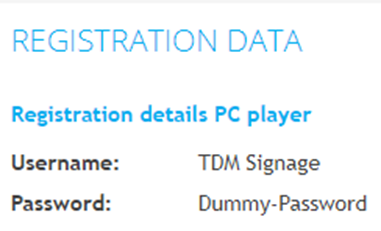
You will see the username and password required for the PC Player login screen. Enter these credentials in the TDM Player login window.
-
After completing the login, your device will be registered automatically. To assign a license, go to Dashboard > Player Overview in TDM Designer.
-
Select the player you have just added.
-
A list of available licenses will appear.
-
Choose one and click Save.
-
Your setup is now complete.
All that’s left is to assign your player to one of your presentations.