
Introduction
With TDM Digital Signage, you can connect various external data sources to your content.
These data sources can then be linked to elements within your design, allowing your content to automatically refresh based on the latest information from the data source.
Requirements
If you want to link a data source to an element, you need to meet the following requirements:
-
Have access to Content Creation in the TDM Designer.
-
Have access to Templates/Pages.
How to Display Text from a Data Source
-
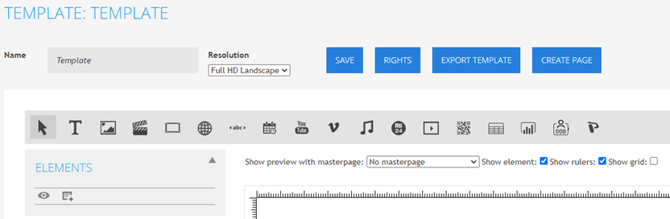
Create or edit a template to open the Template Editor.
-
Select the Text element to display a text value from a data source.

-
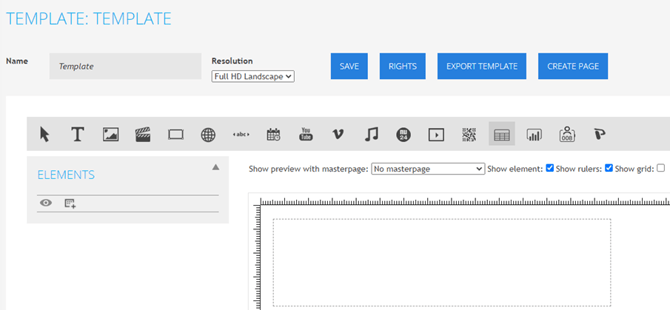
Click and hold the left mouse button to draw a frame in your design — this will define the space for the text element.
-
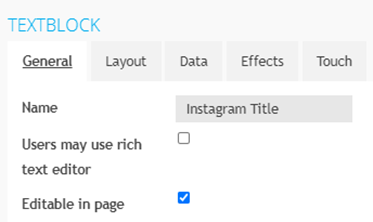
In the pop-up window, enter a name for your element, then navigate to the Data tab.
-
In the “Data” tab, select the desired data source from the drop-down next to “Datasource.”

-
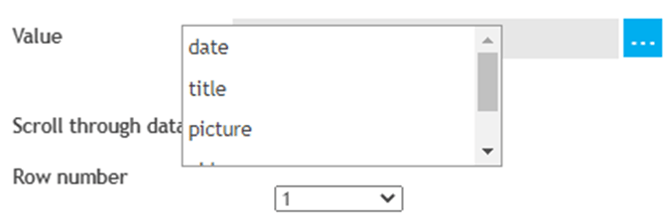
Click the three dots next to the “Value” field to view all available data values.

From the drop-down list, select the value you want to display in your template.
-
Select Save — the value will now appear in your template.
How to Display an Image from a Data Source
-
Create or edit a template to open the Template Editor.
-
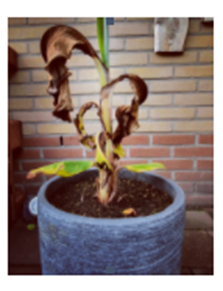
Select the Image element to display an image from a data source.

-
Click and hold the left mouse button to draw a frame where the image will appear.
-
In the pop-up window, enter a name for your element, then navigate to the Data tab.

-
In the “Data” tab, select the desired data source from the drop-down next to “Datasource.”
-
Click the three dots next to the “Value” field to view all available data values.

From the drop-down list, select the value you want to display in your template.
-
Select Save — the image will now appear in your template.
How to Display a Video from a Data Source
-
Create or edit a template to open the Template Editor.
-
Select the Video element to display a video from a data source.

-
Click and hold the left mouse button to draw a frame where the video will appear.
-
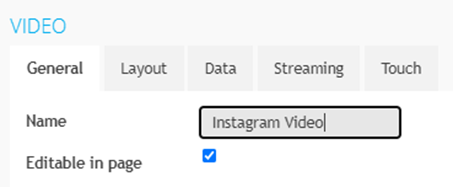
In the pop-up window, enter a name for your element, then navigate to the Data tab.
-
In the “Data” tab, select the Instagram data source (previously created) from the drop-down next to “Datasource.”
-
Click the three dots next to the “Value” field to view all available data values.

From the drop-down list, select the value you want to display in your template.
-
Select Save — the video will now appear in your template.
Note: The latest post in your Instagram feed must contain a video, otherwise this element will remain empty.
You have now successfully linked data sources to display text, images, and videos in your TDM templates.