
Introduction
With TDM Digital Signage, you can schedule specific pages to play at specific times and/or on specific days.
This guide explains how page scheduling can be configured.
Please note that page scheduling overrides presentation-level scheduling for that specific page.
Saving a page schedule will delete all existing presentation-level schedules for that page.
Requirements
If you want to schedule your pages, you need to meet the following requirements:
-
Have access to the playlist and the page where you want to configure scheduling.
How to Schedule Pages from the Designer
-
Log in to the Designer with an administrator account:
👉 https://designer.tdmsignage.com -
Open Content Creation, then select Pages.
-1.png?width=212&height=109&name=mceclip0%20(1)-1.png)
-
You will see an overview of all folders and pages you have access to.

-
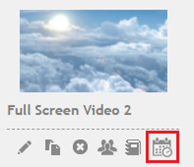
To schedule a page, click the Scheduling button located directly below the page.
-
A new window will open where you can configure your schedule. The following fields can be set:
-
Start date (required)
-
End date (required)
-
Start time (optional)
-
End time (optional)
-
Days (optional)
-
Delete page from playlist(s) automatically after scheduling is finished (optional)
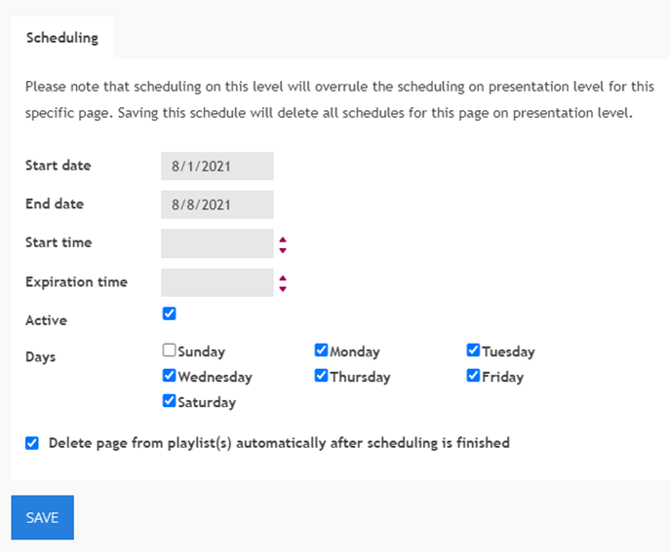
Once all fields have been configured, click Save.
-
How to Add the Scheduled Page to a Playlist
-
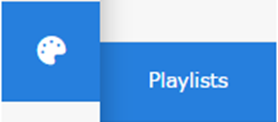
Open Content Creation, then select Playlists.
-
Open the playlist where you want to add the scheduled page.

-
Click the ‘+’ icon in the bottom right corner to add the page to your playlist.
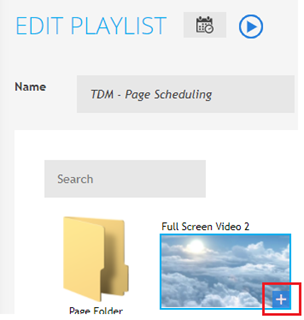
You have now successfully configured page scheduling and added the page to a playlist.
This means the page will only be displayed during the scheduled period. Once the end date has passed, it will no longer appear.
If you selected “Delete page from playlist(s) automatically after scheduling is finished”, the page will automatically be removed from the playlist once the schedule ends.
You can repeat these steps to create multiple page schedules for your devices.