
Introduction
TDM allows you to add external data sources that display real-time information within your presentations.
TDM supports the following external data sources:
-
Facebook
-
Twitter
-
Instagram
-
Yahoo Weather
-
Office 365 Calendar
-
Google Calendar
-
Flickr
-
Yammer
-
LinkedIn
-
Exchange
-
Power BI
-
NS
-
Axis (People Counter camera)
-
HikVision (People Counter camera)
-
Amadeus
-
Realworks
This guide explains how to add a Realworks data source in TDM.
Note: The Realworks integration is supported from version 4.4 and above.
To retrieve information from Realworks, TDM uses their API. If you do not yet have API access, please contact Realworks before continuing.
Requirements
To add a Realworks data source, you need:
-
Administrator access to the TDM Designer
-
Access to the Realworks CRM to link the TDM developer ID
-
TDM version 4.4 or higher
How to Generate Your Custom Token in Realworks
-
Log in to your Realworks CRM account.
-
Open the API Configuration section in the Realworks dashboard. Add the following Developer ID to link your environment with TDM:
57a4302a-41d7-497f-8c62-d299e717a960 -
Once the Developer ID is linked, TDM will receive a notification request.
Before proceeding, the TDM team must accept your request to connect your Realworks environment with the TDM developer account.
After approval, TDM can retrieve the customer token required to create the Realworks data source inside the Designer.
For approval assistance, contact our support team:
support@tdmsignage.com
+31 (0)20 261 0985
Once your request has been accepted, continue with the steps below to set up your Realworks data source in TDM.
How to Create the Realworks Data Source in the Designer
-
Log in to the TDM Designer using an administrator account:
https://designer.tdmsignage.com -
Select “Config Panel” from the left-hand menu.

-
Open the “External Data” tab.
-
Click the “+” button on the right side to create a new data source.

-
In the pop-up window, enter a name for your data source and select “Realworks.”
Then click “Next.”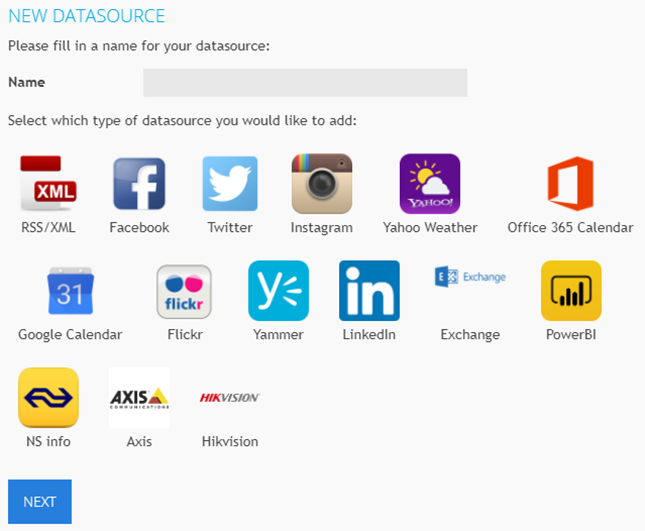
-
In the next window, enter your custom token and select “Save.”
.png?width=620&height=156&name=mceclip4%20(2).png)
-
Once saved, click the eye icon next to the data source to preview the retrieved Realworks information.
.png?width=442&height=97&name=mceclip5%20(2).png)
You have now successfully created a Realworks data source in TDM.
Your signage can now display property and listing information pulled directly from your Realworks CRM.