
Introduction
Starting with version 4.3, TDM uses a new authentication method for creating Office365 data sources, based on the OAuth2.0 protocol.
If you already have Office365 data sources created in earlier versions, they will continue to work with the old authentication method. However, once these data sources are edited and re-saved, they will automatically switch to the new OAuth2.0 authentication.
⚠️ Important:
As of October 13th, 2020, Microsoft no longer supports Basic Authentication for Exchange Web Services (EWS) to access Office365 / Exchange Online.
Please ensure your data sources are updated to use the new OAuth2.0 method before this date.
Requirements
To add an Office365 data source based on OAuth2.0, you need:
-
Administrator access to the TDM Designer
-
A service account that has delegated access to the rooms you want to add
How to Configure Delegated Users
-
Log in with an administrator account at:
https://login.microsoftonline.com -
Open the menu in the top-left corner and select Admin.
-
On the left-hand side, select Show all.
-
Go to Resources → Rooms & Equipment.
-
Select the room (e.g. room01@tdmsignage.com).
-
Under Delegates, click Edit.
-
Add the service account you want to use for your data sources as a delegated user.
Then click Save Changes.
It can take up to 24 hours before the changes become fully active and are processed by Office365.
How to Add an Office365 Data Source Using the Default TDM Azure Application
-
Log in to the TDM Designer with an administrator account:
https://designer.tdmsignage.com/ -
From the left-hand menu, select Config Panel.

-
Open the tab External Data to view your data source overview.
-
Click the “+” button on the right-hand side to create a new data source.

-
In the pop-up window:
-
Enter a name for your data source (e.g. the name of the calendar or room).
This makes it easier to identify later.
-
Select Office365 Calendar.
-
Click Next.
-
-
You will be redirected to the Microsoft login page.
Log in with the service account that has permissions to the desired room or calendar.If this is your first Office365 data source, an administrator approval page will appear.
This step is required to grant TDM access to your Office365 environment.
Once approved, the permissions will be stored, and you can continue setting up your data source.After successful approval and login, the window will close and you will return to the TDM Designer.
-
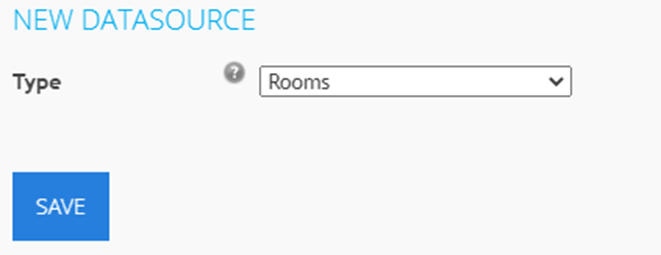
Select the type of resource you want to add:
-
Rooms: Use this option for resources created in the Office365 Admin Centre.
-
Calendars: Use this option for personal calendars from specific users.
-
-
Depending on your choice:
-
Rooms:
Enter the room’s email address (e.g. meetingroom1@tdmsignage.com), then click Save. -
Calendars:
Choose the calendar from the dropdown list (e.g. Calendar), then click Save.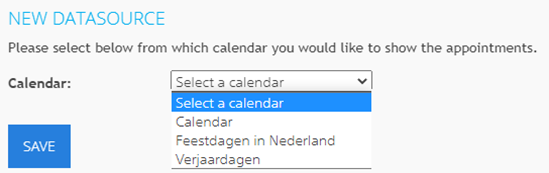
-
You have now successfully created an Office365 data source in TDM.
You can now use this data source in your template designs or as part of your Meeting Room Solution.