
Introduction
Starting from version 4.2, TDM Digital Signage supports cameras with people counting functionality. Currently, TDM integrates with Axis and HikVision cameras.
To use this feature, you first need to set up an external data source within the Designer. Once configured, you can implement people counting within your template design.
The People Counter element offers three display options:
-
Numeric Counter
-
Traffic Light
-
Gauge (used as the example in this manual)
⚠️ Note:
The People Counter element is only supported on Android devices and the PC player.
It cannot be used with an URL Launcher or browser.
Requirements
To use People Counting, you must meet the following requirements:
-
Have an Axis or HikVision camera available within your company network.
-
Have administrator access to the Axis or HikVision camera.
-
Have administrator access to the TDM Designer.
-
Have a TDM Android Player or TDM PC Player within the same network as the camera.
How to Set Up People Counting
1. Setting Up the External Data Source
Before you can use people counting in your design, an external data source must be created. This data source will retrieve live information from the camera.
-
Log in to the Designer with an administrator account: https://designer.tdmsignage.com
-
Open the Config Panel from the left-side menu.

-
Select the External Data tab to view all existing data sources.
-
Click the ‘+’ button on the right side to create a new data source.

-
In the pop-up window, select either Axis or HikVision, depending on your camera brand.

-
Fill in the required fields:
-
IP Address or Hostname: Enter the camera’s IP address or hostname.
Do not add “http://” or “https://”. TDM automatically detects and uses HTTPS if available.
-
Username: Enter the username used to retrieve data from the camera.
-
Password: Enter the corresponding password.
-
Serial Number (Axis only): Required for Axis cameras. Used for player-to-camera verification and added security.
-
-
Once all details are filled in, save the data source.
You have now successfully created the external data source. Next, we’ll connect it to your template design.
2. Using the Data Source in a Template
-
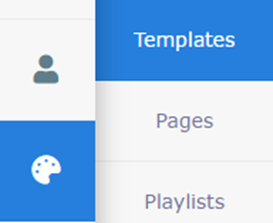
In the Designer, open Content Creation and select Templates.
-
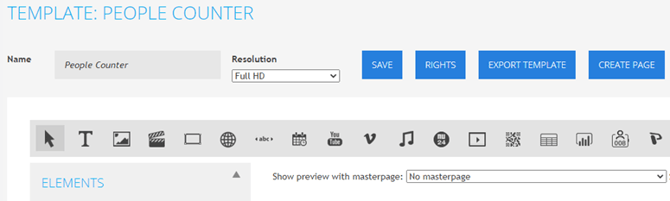
Create a new template or edit an existing one to open the Template Editor.
-
From the elements panel, select the People Counter element (look for the following icon):

-
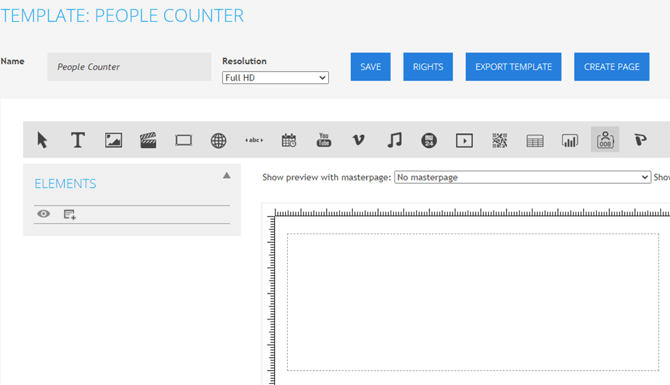
Click and hold the left mouse button to draw a frame where the element will appear in your template.
-
A configuration pop-up will appear. In this example, select Gauge from the counter type dropdown. Fill in the following fields:
-
Name: e.g. Gauge – People Counter
-
Max: The maximum number of people allowed in the area.
-
Low Threshold: The lower threshold value.
-
High Threshold: The upper threshold value.
-
Empty to Low Color: Color for when 0–5 people are detected.
-
Low to High Color: Color for when 6–15 people are detected.
-
High to Full Color: Color for when 16–20 people are detected.

-
Tip:
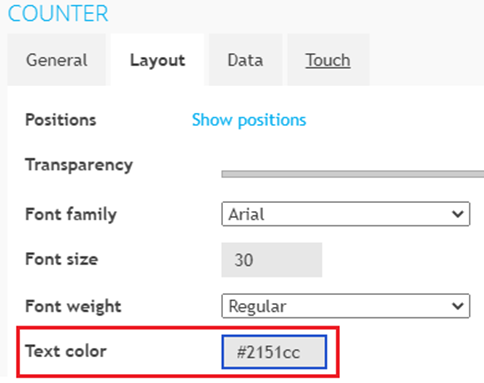
- The font color in the Layout tab also determines the meter color for the gauge.
-
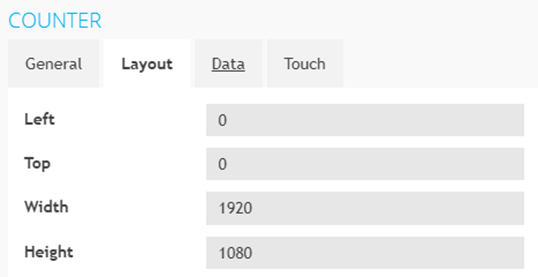
You can adjust the element’s size under Show Positions. For example, if you are using a Full HD layout, you can fill in pixel values to make the counter full screen.
-
When all fields are configured, click Save. The element will now appear in the template editor.
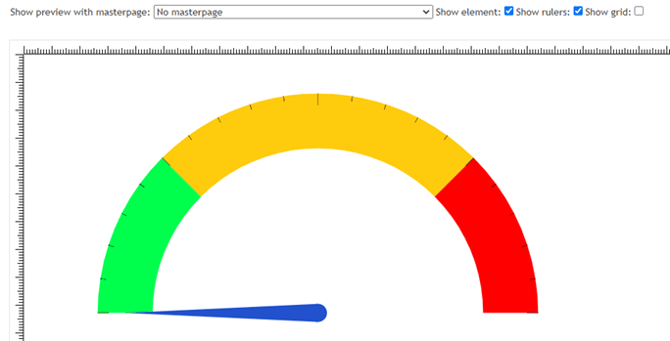
You have now successfully added and configured the People Counter element.
You can continue adding other design elements as needed. Once your template is complete, create a page based on it and add that page to your playlist for display.