
Introduction
With TDM Digital Signage, you can create a meeting room solution on any Android tablet running Android 5.0 or higher.
With the TDM Meeting Room Solution, you can:
-
Start Meeting: Begin a scheduled meeting manually when you arrive at the room.
-
End Meeting: End the meeting early to free up the room for others.
-
Extend Meeting: Extend the duration of an ongoing meeting if more time is needed.
-
Ad-Hoc Meeting: Instantly create a meeting without entering it into a calendar.
-
Find Other Room: Search for other available meeting rooms in the system.
-
Design: Edit an existing layout or create a new one from scratch.
-
Auto-Cancel Meeting (available from version 4.3 and higher) — Automatically cancel a meeting if it hasn’t started within the configured time frame.
-
Screensaver (available from version 4.3 and higher) — Display a presentation on the tablet when no meeting is scheduled.
Requirements
If you want to set up a meeting room solution, you need to meet the following requirements:
-
Have administrator access to the TDM Designer.
-
Have an external calendar data source available to assign to the meeting room solution.
How to Set Up a Meeting Room Solution
-
Log in to the TDM Designer with an administrator account:
👉 https://designer.tdmsignage.com -
Select Meeting Rooms.

-
The overview page will display all created meeting room solutions. From here, you can edit existing solutions or create a new one. To create a new meeting room solution, select New Meeting Room.

-
Enter a name for your meeting room solution and select one of the default templates. If you want to use the Auto-Cancel functionality, fill in a value for Cancel Time. To enable the Screensaver feature, tick the option Enable Screensaver.
Once the screensaver option is enabled, additional settings will appear:
-
Presentation: Select the presentation you want to use (ensure it matches your device’s resolution).
-
Idle Time Before Showing: Set the duration of inactivity before the screensaver starts.
-
Disable Time Before Meeting: Define how many minutes before a meeting the screensaver stops.
-
Enable Time After Meeting: Define how many minutes after a meeting the screensaver starts again.
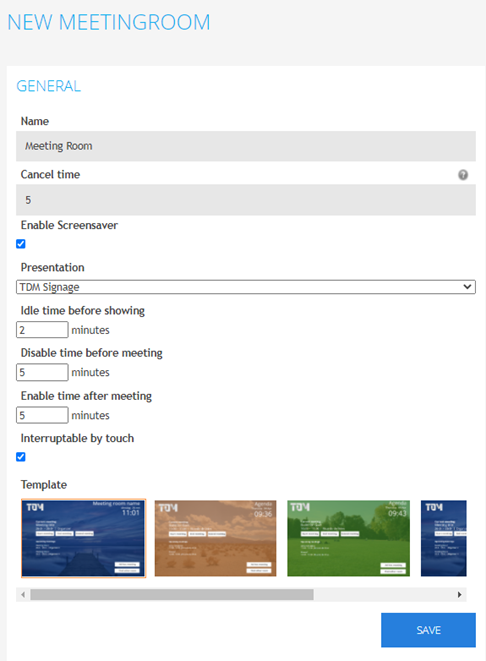
After configuring the above, select Save.
-
-
You will be redirected to the overview of your meeting room solution. From here, you can assign it to a specific device and calendar. Select the ‘+’ icon next to Assigned Players.

-
In the pop-up window, configure the following:
-
Player: Select the player (device) you want to connect to this meeting room solution.
-
Calendar: Choose the calendar that should be linked to the meeting room solution.
-
Other Rooms: Select additional rooms to make them available via the “Find Another Room” option on the tablet.
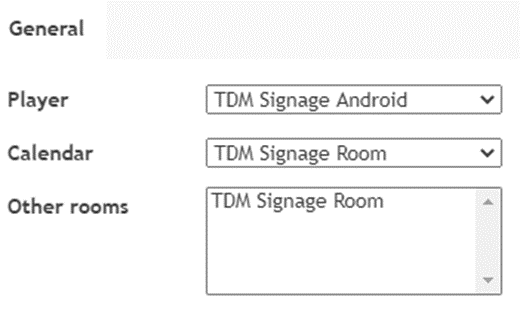
Once all options have been configured, select Save.
-
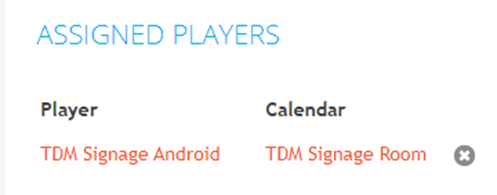
You have now successfully configured a meeting room solution for your device.
Once you restart the TDM Signage application, the newly assigned meeting room solution will be displayed on the tablet.