
Introduction
TDM Digital Signage software includes a Mail to Signage feature, which allows you to easily convert PowerPoint presentations into TDM presentations simply by sending them to a dedicated email account.
Each PowerPoint file you send will automatically be converted into a template, page, playlist, and linked presentation.
With this functionality, you can update and maintain your signage presentations without ever logging in to the platform.
Requirements
If you want to set up Mail to Signage, you need to meet the following requirements:
-
Have administrator access to the TDM Designer.
-
Have a dedicated email account for PowerPoint conversions.
-
Have a device assigned to display your presentation.
How to Set Up Mail to Signage
Important:
Before you begin, first create a presentation manually and connect a playlist and a player to it.
This ensures the system knows which presentation and player to use. After sending the first email, the playlist will automatically be replaced with a new one created by the system.
-
Go to https://designer.tdmsignage.com. Log in with your administrator account.
-
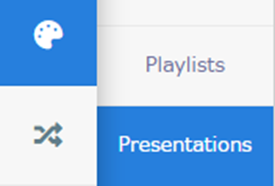
Navigate to Content Creation > Presentations.
-
Create a new presentation or select an existing one that you want to use for Mail to Signage.

-
Once inside your presentation, you can add playlists, assign players, and configure the Mail to Signage settings.
Depending on your email provider, use one of the following configurations:
For Office 365 Email Accounts
-
IMAP mail server address: outlook.office365.com
-
Mailbox username: Your full email address
-
Mailbox password: Password for the email account
-
Number of minutes between mailbox checks: How often TDM checks for new emails
-
Mail server port: 993
-
SSL: Enabled
For Gmail Accounts
-
IMAP mail server address: imap.gmail.com
-
Mailbox username: Your full email address
-
Mailbox password: Password for the email account
-
Number of minutes between mailbox checks: How often TDM checks for new emails
-
Mail server port: 993
-
SSL: Enabled
After filling in all the required fields, your presentation is ready for use. From now on, whenever the system detects a new PowerPoint file in the configured mailbox, it will automatically convert it into a TDM presentation.
You have now successfully set up Mail to Signage.