
Introduction
Starting from version 4.1, TDM Digital Signage allows you to drag and drop images directly into the template editor.
When you use this feature, your images are automatically converted into elements and added to your design.
This guide explains how to use the drag-and-drop functionality within the template editor.
Requirements
If you want to use drag and drop, you need to meet the following requirements:
-
Have access to the template editor.
How to Use Drag and Drop in the Template Editor
-
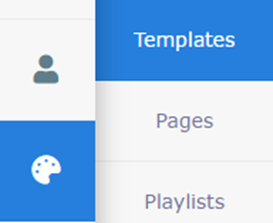
Open Content Creation from the menu on the left side of the Designer and select Templates.
-
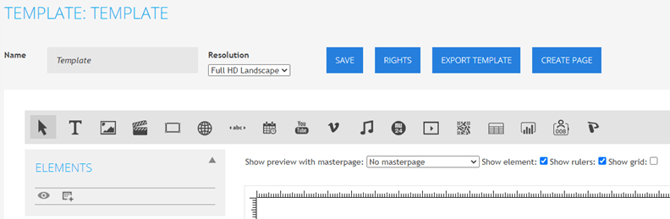
Create a new template or edit an existing one to open the template editor.
-
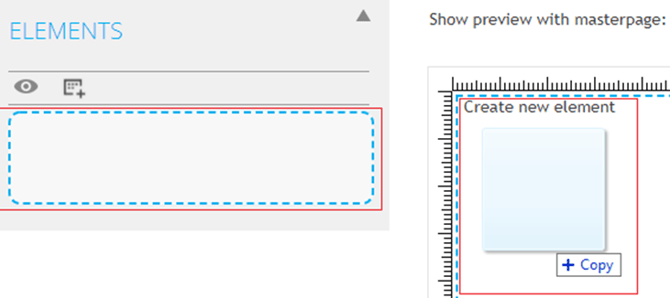
On your local computer, select the image you want to add and drag it into the template editor. You will see two blue frames appear in the editor. Release the image inside one of these frames to add it to your design.
-
Once released, the image will be added as a new element and will appear in the top-left corner of your design. From there, you can drag it to a different position and resize it as needed.
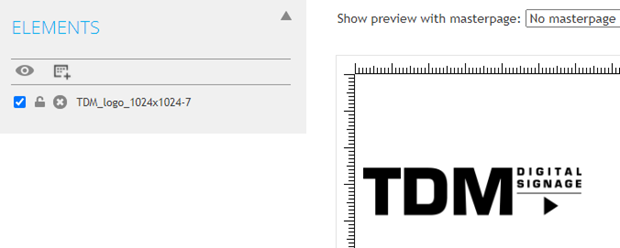
You have successfully added an image using the drag-and-drop feature.
You can repeat these steps to add multiple images to your design.