
Introduction
With TDM Digital Signage, you can assign tags to your pages to help organize and filter them when creating playlists.
For example, if you want to create a playlist filled with advertisements, you can tag all your advertorial pages with “advertisement”. Then, you can automatically fill your playlist with all pages containing that tag.
You can assign multiple tags to a single page.
Requirements
To add tags to your pages and filter them in playlists, you need:
-
Access to Content Creation > Pages
-
Access to Content Creation > Playlists
-
Designer version 4.1 or higher
How to Use Tags for Pages
-
Log in to the Designer: https://designer.tdmsignage.com
-
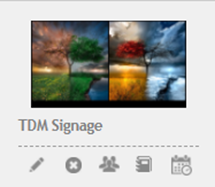
Go to Content Creation > Pages.
-1.png?width=212&height=109&name=mceclip0%20(1)-1.png)
-
Open the page where you want to add a tag.
-
Click the Tags button on the right side of the page name.

-
A new field will appear below the page name — this is where you can enter your tags.
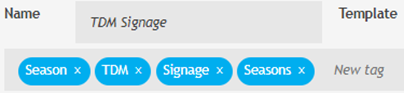
-
After entering the desired tags, save the page.
-
Next, go to Content Creation > Playlists.
-
Open the playlist where you want to add pages.
-
Enter the tag name you want to use to filter pages.
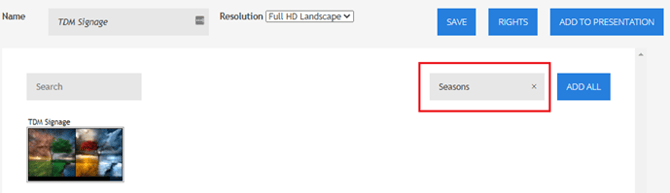
Add the filtered page(s) to your playlist. If you want to filter using multiple tags, repeat the process with different tags.
You have now successfully added and used tags to filter and organize pages within your playlists.