
Introduction
As a reseller, you have access to the TDM Reseller Portal, where you can create new customer accounts, add demo licenses, activate license codes, and extend existing licenses.
This guide explains how to:
-
Create new customer accounts
-
Add demo licenses
-
Add new licenses
-
Extend existing licenses
Requirements
To use the TDM Reseller Portal, you need:
-
Access to the TDM Reseller Portal
TDM Reseller Portal – Overview
- Log in to the TDM Reseller Portal: https://reseller.tdmsignage.com
-
After logging in, you will be redirected to the Customer Overview. Here you can view all your TDM customers.
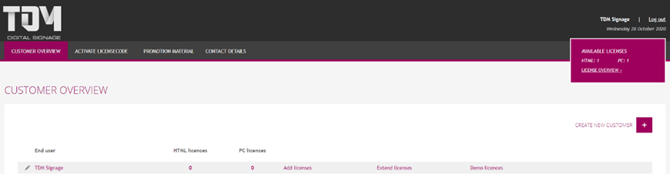
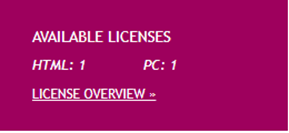
- On the right-hand side, you’ll see the Available Licenses section. This displays all licenses in your account — once you order TDM licenses, they appear here. This panel remains visible across all tabs in the portal.
- Under the Activate License Code tab, you can activate codes received from your distributor. Enter your license code, click Check, and the licenses will automatically be added to your available licenses.
- In this tab, you’ll find brochures and marketing materials you can share with customers. These will be updated as new materials become available.
- You can display your contact details to your TDM customers. Once updated, your details will appear in the footer of the Designer, helping customers know who to contact for support or questions.
TDM Reseller Portal – Creating a New Account
-
From the Customer Overview, you can create new customers and manage their licenses. Click Create New Customer.
-
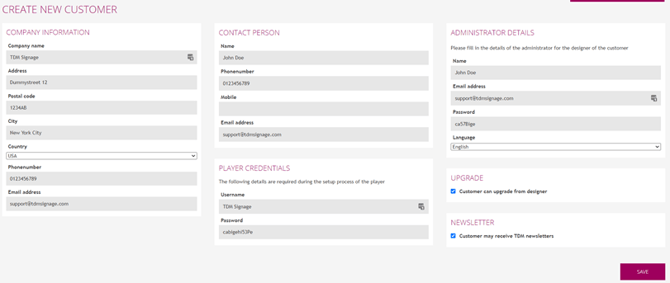
Fill in the company details of your customer. Note that the selected company will also determine the time zone.
-
Player Credentials: Used to register PC players. These details will also be visible in the Designer account.
-
Administrator Details: Contains login information for the Designer. These details will not remain accessible after the account is created, so be sure to copy them before proceeding.
-
-
Once all fields are complete, click Save. After the account is created, you will be redirected back to the Customer Overview, where the new account will now appear. Select the customer to view their full details.
TDM Reseller Portal – Activating a License Key
-
Go to the Activate License Code tab in the top menu.

-
Enter the license code you received in the input field. Click Check License Code(s).

-
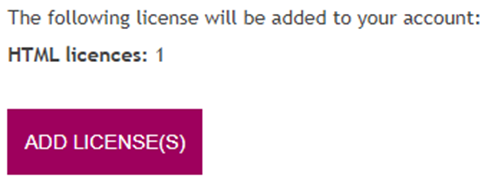
If the code is valid, the system will display the number of licenses to be added. Click Add Licenses to confirm.
-
The licenses will now appear in your reseller portal and can be used to extend existing licenses or assign new ones to customers.
TDM Reseller Portal – Adding or Extending Licenses
- You can add two 30-day demo licenses to a customer’s account so they can test the software. Click Demo Licenses.

- In the pop-up window, assign the demo licenses to your customer.

- If you’ve purchased licenses for your customer:

Adding Licenses
-
Click Add Licenses.
-
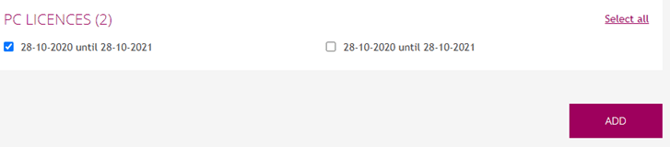
On the new page, tick the licenses you want to add.
-
Click Add to confirm.
Extending Licenses
-
Click Extend Licenses.
-
On the next page, you’ll see a list of existing licenses.
-
Next to each license, click Extend License to renew it for one or three years.

TDM Reseller Portal – Logging in as a Customer
With the latest update of the reseller portal, resellers can now log in as a customer — but only if the customer has granted permission.
-
In the Customer Overview, click the Login button next to a customer’s account.

-
You will see all accounts that have granted permission for reseller login.

-
If the list is empty, the customer hasn’t granted permission yet.
How Customers Grant Permission
Ask your customer to:
-
Log in to the Designer with an administrator account: https://designer.tdmsignage.com
-
Go to Config Panel.

-
Open the Authentication Options tab.

-
Tick the checkbox “Reseller is allowed to login.”

Once the customer enables this option, refresh your reseller portal page — the login should now be visible.
You can now log in as the customer and manage their TDM environment directly.