
Introduction
TDM5 allows you to create your own designs using elements. Each element has its own configurable properties, giving you the flexibility to design content based on your needs.
This article explains how to add a Date/Time element. Additional guides for other elements can be found in our knowledge base.
Requirements
To add a Date/Time element to your page, you need the following:
-
Access to Designer > Pages with permission to create or edit a page.
How to add a Date/Time element
-
Log in to your TDM5 environment.
-
Select Designer.

-
Select the menu option Pages.
-
Open an existing page by clicking Edit, or create a new page by clicking Add new page.

-
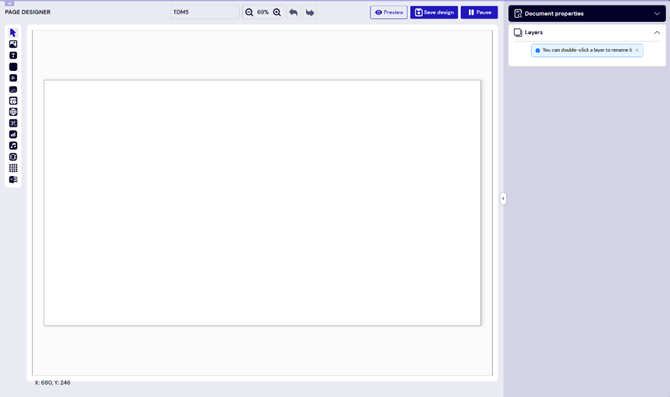
You will now be taken to the content editor, where you can design your page.
-
Select the Date/Time element from the menu on the left side of the screen.
-1.png?width=214&height=643&name=blobid0%20(1)-1.png)
-
Draw a frame in the template editor by clicking. Adjust the size of the element as needed, then click again to confirm.
-1.png?width=670&height=445&name=blobid1%20(1)-1.png)
-
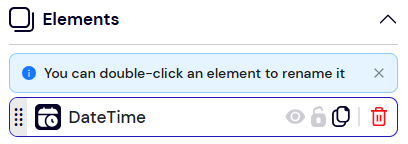
Configure the element properties on the right side of the page. To change the name, double-click the element in the Elements section.
-
In the Element layout section, adjust the position and rotation if needed.
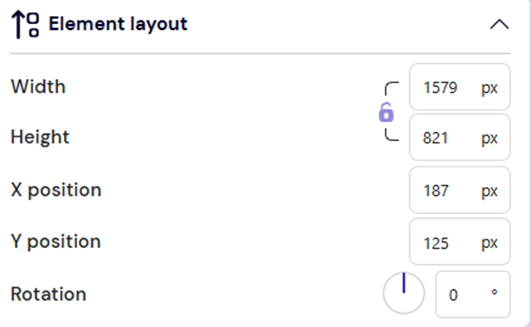
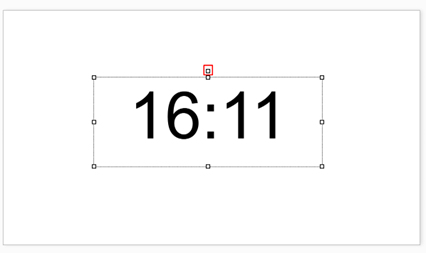
Resize the element by dragging its border.
-1.png?width=469&height=268&name=blobid1%20(2)-1.png)
Rotate the element using the dot at the top.
-
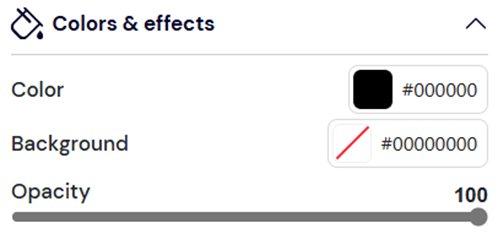
In the Colors & effects section, set the text opacity, text color, and background color.
-
In the Text section, adjust the display format. The default is
HH:mm(hours and minutes), but you can also display dates by changing the format.Note: The date and time are taken from the player device. Ensure the device has the correct date and time configured.
You can also connect this element to an external data source. These often contain full date and time stamps in ISO format. Using the format in TDM5 you can adjust this to something more readable. -
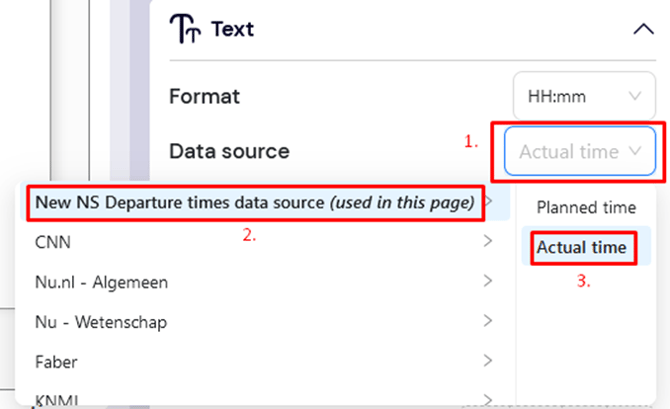
Connect the element to an external data source. Open the dropdown for data source selection.
-
Select an available data source. If needed, first create one (see our knowledge base article How to create a data source).
-
Select the value you want to display from the data source (for example, train departure time from the NS data source).
(Optional) Change the format to display the date and/or time in your preferred format.
Once completed, you have successfully added a Date/Time element. You can continue designing and add more elements as needed.