
Introduction
TDM5 allows you to create your own designs using elements. Each element has its own configurable properties, giving you the flexibility to design content based on your needs.
This article describes how to add a widget to a page. Currently, widgets are available for Buienradar (Dutch weather), NOS (Dutch news), and NU (Dutch news).
Requirements
To add a widget to your page, you need the following:
-
Access to Designer > Pages with permission to create or edit a page.
How to add a widget
-
Log in to your TDM5 environment.
-
Select Designer.

-
Select the menu option Pages.
-
Open an existing page by selecting Edit, or create a new page by clicking Add new page.

-
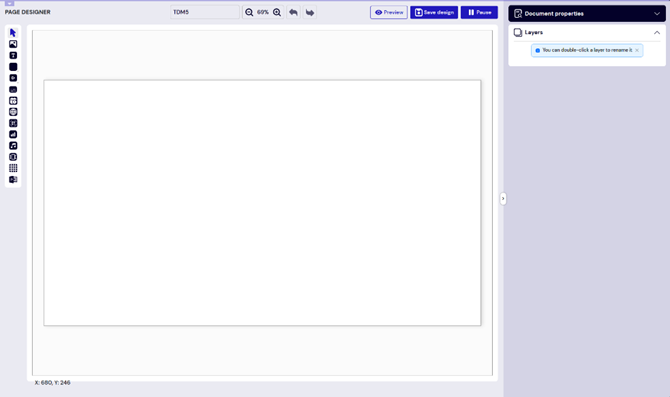
You will then be taken to the content editor, where you can design your page.
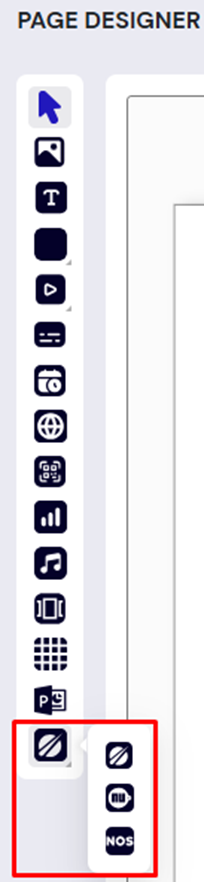
- Select the Widget element from the menu on the left side of the screen.
- Draw a frame in the template editor by clicking and dragging. Adjust the size of the element, and click again once you are satisfied.
-1.png?width=670&height=445&name=blobid1%20(1)-1.png)
- Configure the properties of the element on the right side of the page. To change the name, double-click the element in the Elements section.
.png?width=587&height=197&name=blobid1%20(2).png)
- In the Element layout section, you can adjust the position of the element and set rotation if needed.
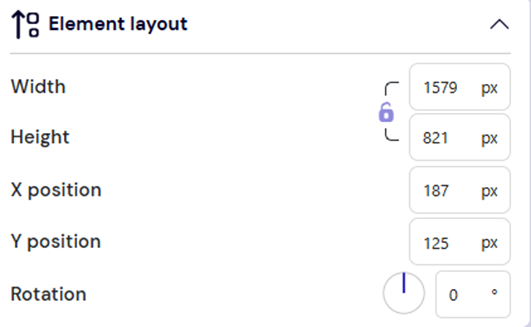
You can also resize the element by dragging its border.
Rotation can be adjusted using the dot at the top of the element.
.png?width=416&height=230&name=blobid4%20(1).png)
10. In the News section, select the desired news source and category, and choose whether to display the publish date and description.
.png?width=484&height=235&name=blobid2%20(1).png)
11. In the Touch section, configure content to be displayed when the element is pressed. This is useful if the content will be shown on a touchscreen device.
.png?width=555&height=441&name=blobid0%20(1).png)
Once completed, you have successfully added a widget to your design. You can continue designing and add additional elements if needed.