
Introduction
TDM5 allows you to create your own designs using your media files, such as logos and other company assets. There are several ways to access your media files: the built-in TDM5 storage, OneDrive, Dropbox, and Google Drive.
This article explains how to copy media in TDM5.
Requirements
To copy media in your TDM5 environment, you need the following:
-
Access to Designer > Media
-
Items available to copy
How to copy media
-
Log in to your TDM5 environment.
-
Select Designer.

-
Open the menu option Media.

-
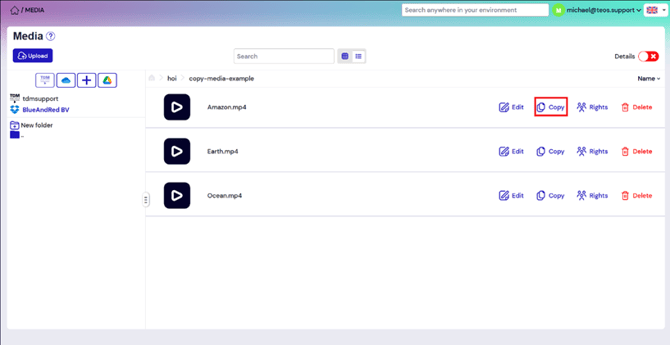
The media library will be displayed. Select Copy to duplicate an item.
-
A pop-up will appear saying Copying.

-
After a few seconds, the item will be copied.

-
The copied item will appear with “(1)” added to its name.

Repeat these steps for any additional media files you want to copy.
You have now successfully copied media in TDM5