
Introduction
TDM5 allows you to create schedules for specific times and/or days. A schedule can be linked to content, but also to actions such as powering off your device. This functionality lets you automate actions for events or other occasions without needing to manually change the device’s state.
This article explains how to create a power schedule.
Additional articles about scheduling can be found in our knowledge base.
Note: Not all devices support remote power on/off functionality.
Requirements
To create a power schedule, you need to meet the following requirements:
-
Have access to Devices > Schedules
How to create a power schedule
-
Log in to your TDM5 environment.
-
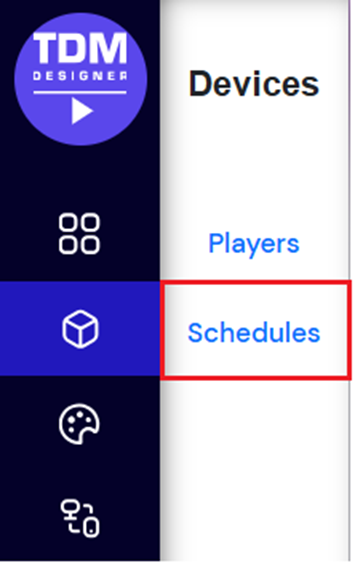
Select Devices.

-
Open the menu option Schedules.
-
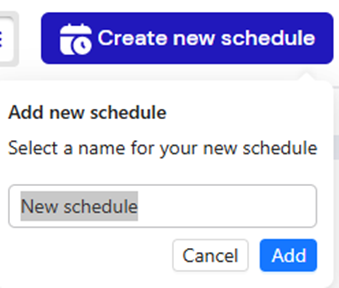
Click Create new schedule in the top-right corner.

Enter a name for your new schedule and click Add.
-
In the next window, select the Active periods (interval).
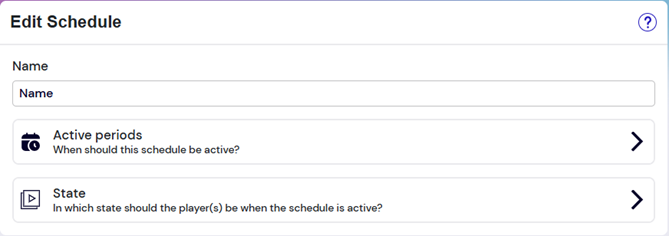
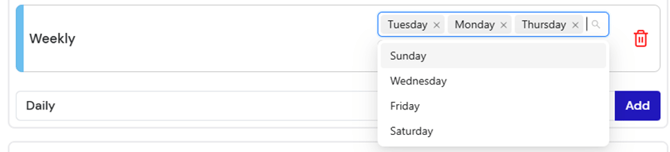
Choose the schedule interval: Once, Daily, or Weekly.

After selecting the interval, set the preferred time for your power schedule. Note: The device will enter standby mode once the schedule becomes active.


To apply the schedule to multiple days of the week, add additional intervals as needed.
-
Set the State of the schedule to StandBy.

-
Select the player or player group you want to assign this schedule to.

-
When finished, click Save at the top of the page.

You have now successfully created a power schedule in TDM5.