
Introduction
TDM5 allows you to create your own designs, which can then be added to a playlist.
A playlist can include pages, media from your media library, or even other playlists. Once a playlist is linked to a player, that player will automatically display all the content included in it.
Requirements
If you want to fill a playlist with content, you need to meet the following requirements:
-
Have access to Designer > Playlists and be able to create or edit a playlist.
How to fill a playlist with content
-
Log in to your TDM5 environment.
-
Select Designer.

-
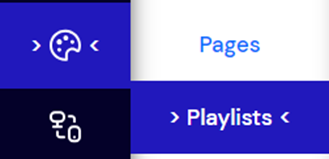
Click on the menu option Playlists.
-
Select Edit to open an existing playlist.

-
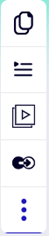
In the top-right corner, you will see four options: Playlists, Media, Transitions, and Details. To fill your playlist with content, use the first three options — Pages, Playlists, or Media.
-
Select one of the three options. The content available for that category will appear.
Example: Select “Pages” to view all available pages.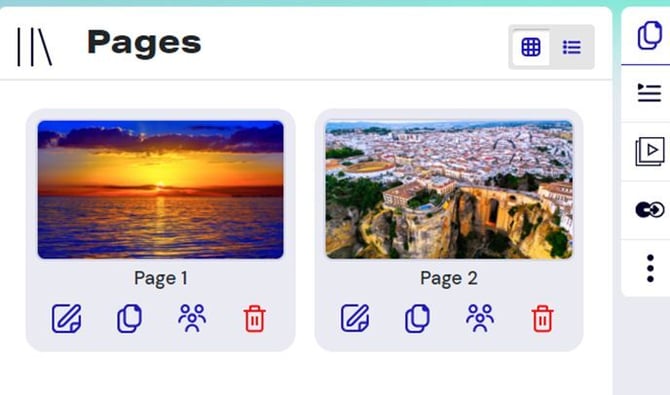
-
Drag and drop the items you want to add to your playlist.
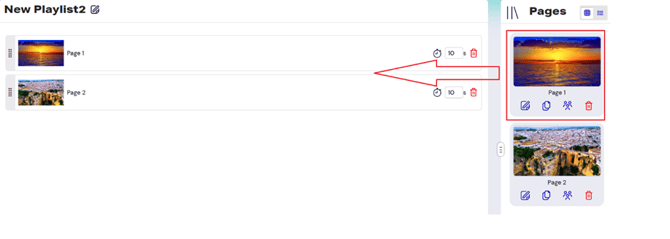
You have now successfully filled your playlist with content.
For more details, please refer to the manual ‘TDM5 - How to add transitions’ for additional playlist customization options.