
Introduction
TDM5 allows you to create your own designs using elements. Each element has its own configurable properties, giving you the flexibility to design content based on your needs.
In addition, TDM5 includes a library of demo templates. This guide explains how to download and import demo templates into your environment.
Requirements
To import demo templates, you need the following:
-
Access to Designer > Pages
How to download a demo template
-
Navigate to: https://tdm5.tdmsignage.com/pages
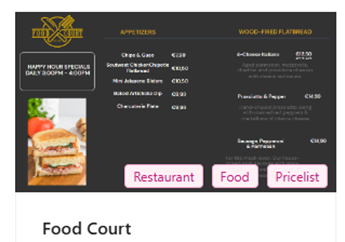
Here, you will see an overview of all available demo templates. -
Choose the template you want to use and click Download.
-
The file will download as a
.zipfile, typically to your Downloads folder by default.-2.png?width=670&height=95&name=blobid1%20(1)-2.png)
How to import a template
-
Log in to your TDM5 environment.
-
Select Designer.

-
Select the menu option Pages.

-
Click Import page in the top-right corner.

-
Navigate to the folder where your downloaded template is stored and select it (by default, this will be the Downloads folder).

-
After selecting the file, the template will be imported. You will automatically be redirected to the imported template once the process is complete.
You have now successfully imported a template into the TDM5 Designer. You can repeat these steps to import additional templates if needed.