
Introduction
TDM5 offers a free migration tool that allows you to migrate content from TDM4 to TDM5.
This tool lets you choose which content to migrate, so old or unused files can be skipped. This ensures your TDM5 environment contains only the active content from your TDM4 environment.
The migration tool can be used as many times as needed. Any forgotten content can be migrated later. When content is migrated, a symlink is created in your TDM4 upload folder. This allows your TDM4 environment to still locate the media files, ensuring your TDM4 content continues to work after migration.
Supported file extensions
The migration tool currently supports the following formats:
Video:
-
.mp4
-
.mov
Audio:
-
.mp3
Image:
-
.png
-
.jpg
-
.jpeg
-
.gif
-
.svg
If you don’t yet have a TDM5 account, you can create one here: https://tdm5.tdmsignage.com/freetrial
The trial account includes two demo licenses valid for 30 days. During the creation process, you can choose which subscription you’d like to use. This can be changed later if needed. The trial account has no limitations and includes all features of the selected subscription.
Requirements
To import TDM4 content into TDM5, you need:
-
Administrator access to your TDM5 environment
-
Administrator access to your TDM4 environment
How to Import TDM4 Content to TDM5
- Login to your TDM5 environment using an administrator account.
- Select “Designer”.

- Select the menu option called “TDM4 Import”.
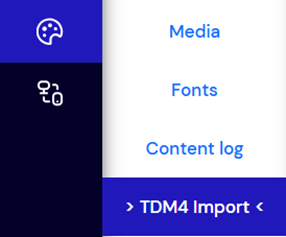
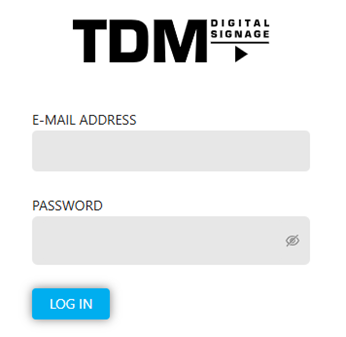
- Once selected, a login prompt will be shown. Here you can login with your TDM4 account. Please note that an administrator account is required.
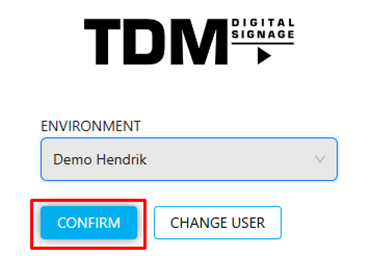
- Once logged in, the name of your environment will be shown. Select ‘Confirm’ in case the name is correct.
- Now you will see the TDM4 import tool. This tool will guide you through the different kinds of content TDM4 offers.
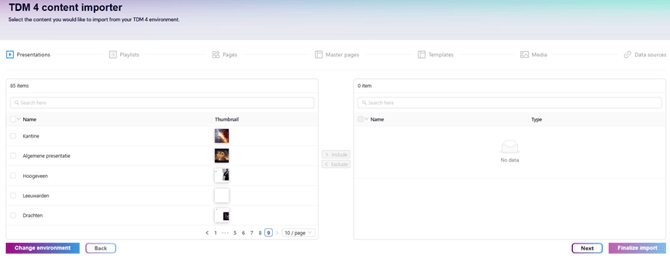
- The process will start with presentations.
The import tool will automatically include everything linked to a presentation. This means that if you select a presentation, the master page, playlists, pages, templates, data sources, and media files will also be selected.
At the top, there is a search field you can use to find presentations.
Press “Include” once you have selected the presentations you want to import.
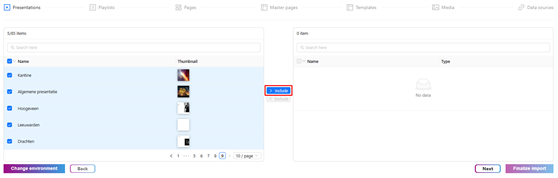
Select ‘Next’ once you have selected the presentations you would like to import. - Second step is to select playlists. Please note that it is not required to select any playlists which are already connected to presentations you have selected. This is because these playlists will automatically be imported as they are part of the presentation.
Select ‘Next’ once you have selected the playlists you would like to import. -
The third step is to select the pages you want to import. Some pages may not be in use and therefore not linked to any presentations. If you still want to import these pages into TDM5, you can select them and add them to the list.
At the top, there is a search field you can use to find pages. This search option also looks through page folders.
Select “Next” once you have chosen the pages to import.
-
The fourth step is to select the master pages you want to import.
Select “Next” once you have chosen the master pages.
- The fifth step is to select the templates you would like to import.
There is a search field at the top which you can use to search for templates, this search option will also search template folders.
Select ‘Next’ once you have selected the templates you would like to import. -
The sixth step is to select the media files you want to import. Keep in mind that any content selected in the previous steps will automatically include its linked media files.
Select “Next” once you have chosen the media files.
-
The final step is to select the data sources you want to import.
Please note that the following data sources must be updated manually after import, as the token used in TDM4 cannot be used in TDM5:
-
Instagram
-
Facebook
-
Office365
-
Google Calendar
-
PowerBI
-
NS Info
-
Realworks
-
Zermelo
Select “Finalize import” once you have chosen the data sources.
-
- An overview of the selected content will be shown. Press”Import” in case all content has been selected.
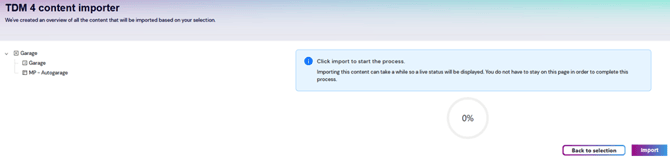
- The following screen will be shown once the import has finished. After this, you can select ”To dashboard” to finish the process.
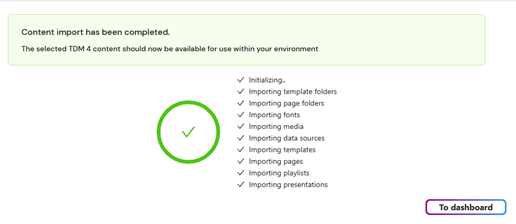
Now you have successfully imported your TDM4 content in TDM5.