
Introduction
TDM5 supports Android devices such as Sony Bravia, Philips D-Line, and Android media players. The installation method depends on your device. This manual explains the different workflows you can follow to install the TDM5 Android Player.
Requirements
To install the TDM5 Android Player, you need:
-
An active player license within your TDM5 account
-
(Additional) Access to the Google Play Store
-
(Additional) A USB stick with the TDM Android Player APK file
-
(Additional) ADB installed on your PC and enabled on your device
Note: Both your PC and device must be on the same network if using ADB.
If using a X102 player, after opening the TDM5 application, permissions are required, it will ask which settings to use to open these, please select "Settings".
How to install the TDM5 Android Player using the Google Play Store
-
Switch on your Android device.
-
Open the Google Play Store application.
-
Use the search function to search for TDM5.

-
Select the application and download it to your device. Once the download is complete, select Open to launch the TDM5 Android Player.
How to install the TDM5 Android Player using a USB stick
Important: Your device must have a file explorer or an app such as APK Installer to access the USB drive.
-
Download the APK file from: https://tdm5.tdmsignage.com/download/android
-
Copy the downloaded APK file to a USB stick.
-
Plug the USB stick into your device.
-
To install the .APK file, you need a file explorer to access the USB drive. If your device does not have access to the Google Play Store, it will most likely already have a File Explorer app installed by default.
It is also possible that an app called “APK Installer” is available. If neither of these is installed by default, open the Google Play Store and search for ES File Explorer. Install this application so you can access the USB drive.
-
Navigate to the USB drive.
-
Locate the APK file and select it to install the TDM5 Android Player.
-
Once installation is complete, the TDM5 Android Player will appear in your app overview. You can start it from there.
If using a X102 player, after opening the app permissions are required, it will ask which settings to use to open these, please select "Settings".
How to install the TDM5 Android Player using ADB
-
On your device, go to Settings → Developer Options → ADB Debugging/USB Debugging and enable it.
-
If Developer Options is not visible, go to Settings → About → Build number and tap it 7 times.
-
Verify the device IP address under Settings → About → Status.
-
Download Google Platform Tools from: https://developer.android.com/tools/releases/platform-tools.
-
Move the ZIP file to the root of your C: drive and extract it.
** You now have a folder named platform-tools.
-
Download the TDM5 APK file from: https://tdm5.tdmsignage.com/download/android.
-
Move the APK file into the platform-tools folder.
-
Open Command Prompt and navigate to the folder:
cd C:\platform-tools(Adjust the path if platform-tools is located elsewhere.)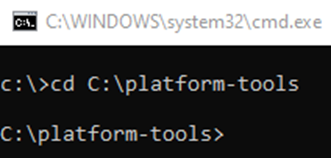
-
Run the following command to list connected devices:
adb devices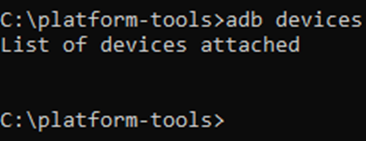
-
If your device is not listed, connect using:
adb connect <ip_address_of_device>If you get a port 5555 error, use:
adb connect <ip_address_of_device>:5555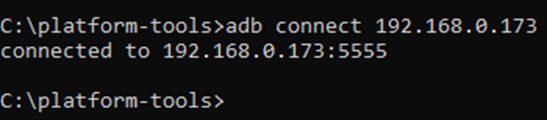
-
ADB can be used to remotely install applications from the command line. To use this command, you need to make sure that the APK file you want to install is available in the ADB folder.
A. Once the file is available in the ADB folder, use the following command to install the APK file:
adb -s <ipaddressofdevice> install <filename>.apk
B. If you want to update an existing application, use the following command:adb -s <ipaddressofdevice> install -r <filename>.apk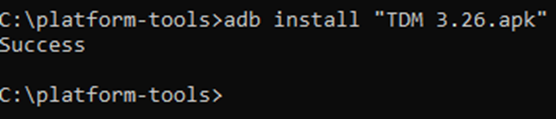
Once the command prompt returns “Success”, you have successfully installed the TDM application on your device.