Introduction
TDM5 supports Windows devices, such as a NUC, laptop, workstation, or any other Windows system. This manual explains the workflow to install the TDM5 PC Player on your Windows device.
Requirements
If you want to install the TDM5 PC Player, you need to meet the following requirements:
-
Have an active player license within your TDM5 account.
-
Have a Windows device running Windows 10 or higher.
-
Have administrator access to the Windows device.
How to install the TDM5 PC Player
-
Switch on your Windows device and log in with an administrator account.
-
Download the TDM5 PC Player from the following URL:
https://tdm5.tdmsignage.com/download/windows -
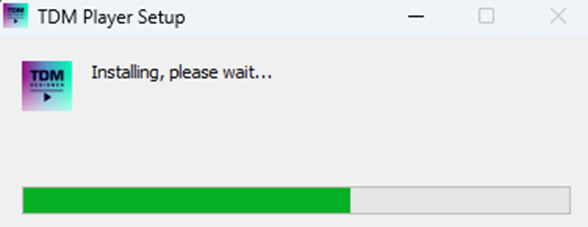
Open TDM Player Setup.exe to install the software. A dialog will appear to guide you through the installation.
-
Once the installation is complete, the application will automatically open.
-
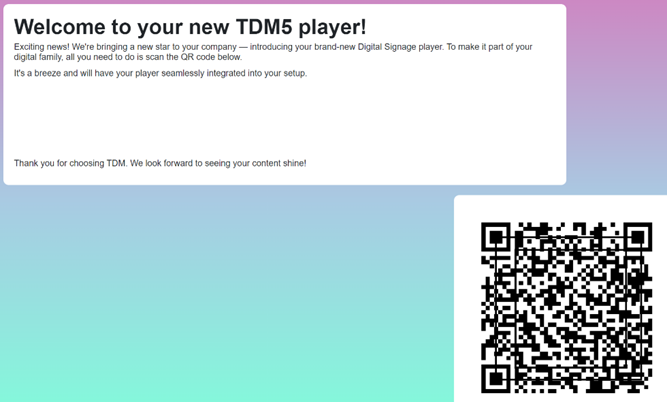
A unique QR code will appear. Scan it with your phone.
-
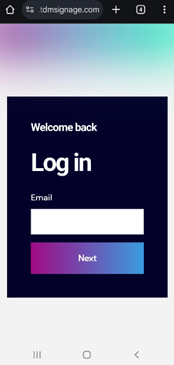
You will be redirected to the TDM5 platform. Log in with your account to continue.
-
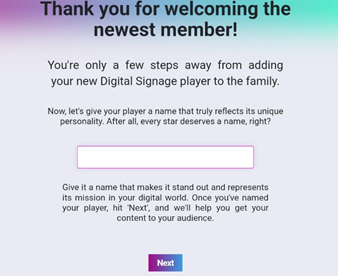
On the next screen, enter a name for your PC player. We recommend using a name that specifies the device’s location so you can easily find it later in the player overview. Click Next once the name has been entered.
-
Select the environment you want to add the PC player to. If you only have access to one environment, this step will be skipped.

-
Select the content you want to link to your PC Player. If default content has been configured in your environment, TDM5 will automatically link it.

-
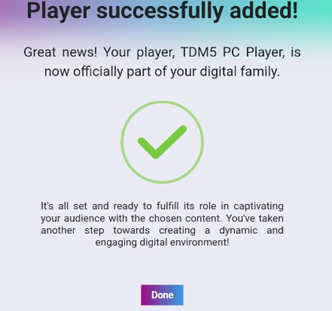
After completing these steps, the PC Player will be successfully added to your TDM5 environment. It will automatically start displaying the content.