
Introduction
TDM5 supports all kinds of devices, including Sony Bravia, Philips D-Line, Samsung displays, or Android/PC players. This manual explains how TDM5 can be configured and installed on a Samsung (Tizen) display.
Requirements
If you want to install TDM5 on your Tizen display, you need to meet the following requirements:
-
Administrator access to TDM5
-
A display running Tizen OS
-
Minimum 4GB storage space (recommended)
-
Minimum 2GB memory (recommended)
-
Wi-Fi or cable internet connection (a cable connection is recommended for Full HD or higher resolution content)
How to install the TDM5 Tizen Player
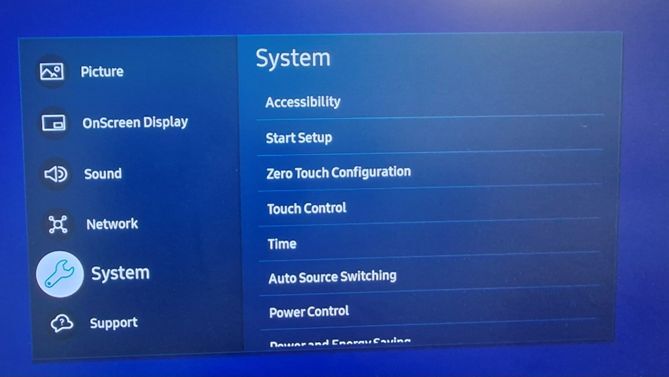
- After running the default configuration, the screen will be set to use Magic Info. We need to change this to URL Launcher. To do this, switch on your Tizen device and press the Menu button. In the menu, navigate to the System options.
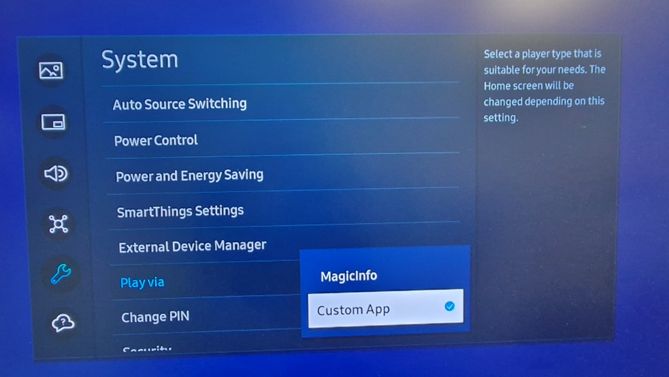
- In the Settings menu, navigate to Play via and select URL Launcher. We are now able to configure the TDM app. Press the Back button until you return to the normal input screen.
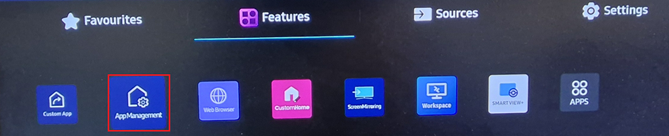
- The Tizen display requires downloading an app through a URL Launcher. To enter this URL, press the Home button. In this menu, you should see the option: AppManagement. Open this option.
- A web URL needs to be entered so the display knows where to download the application. The URL for the application is:
https://tdm5.tdmsignage.com/download/tizen
Enter this URL in the Install Custom App field and select OK.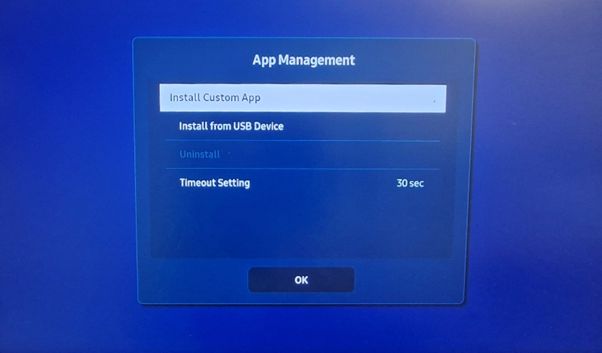
- As soon as you have done so, the display will start downloading and installing the app. Once the app is installed, the start screen will appear, displaying a QR code.
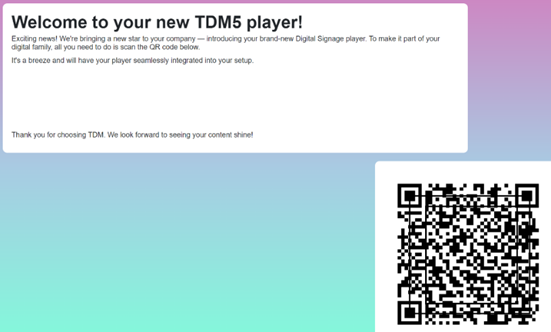
- You will be linked to the TDM5 platform once you scan the QR code. Log in with your account to continue.
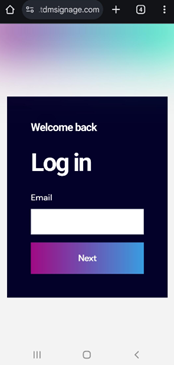
- On the following screen, you can enter a name for your player. We recommend using a name that specifies the location of the device. This way you can easily find it in the player overview of the web interface. Press Next once the name has been entered.
-1.png?width=338&height=276&name=download%20(1)-1.png)
- Now you can select the environment you want to add the player to. In case you only have access to one environment, this page will be skipped.
.png?width=336&height=247&name=download%20(2).png)
- On the next page, you can select the content you want to link to your player. TDM5 will automatically link the default content if this has been configured in your environment.
.png?width=294&height=276&name=download%20(3).png)
- After completing these steps, you have successfully added the player to your TDM5 environment. The player will automatically start displaying the content as soon as the process has been completed.
.png?width=259&height=243&name=download%20(4).png)
Now your Samsung Tizen display is configured and ready to use with TDM5.