Introduction
TDM5 supports Windows devices such as NUCs, laptops, workstations, or any other Windows-based system. This manual explains the workflow for linking a TDM5 PC player to your environment.
Requirements
If you want to link a player, you need to meet the following requirements:
-
Access to Designer with at least the Player Manager role.
How to link a player to your environment
-
Install the player software on your device. For detailed instructions, visit the "Players" category in our knowledge base
-
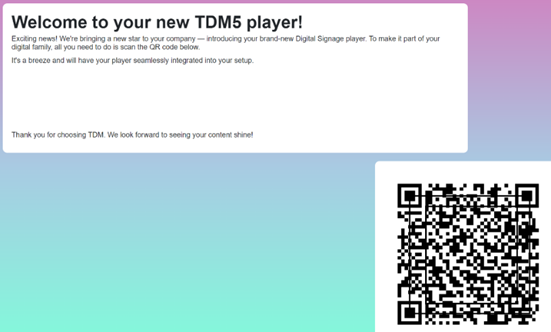
Open the TDM5 software on your device. A unique QR code will appear. Scan the QR code with your phone to connect to the TDM5 platform.
-
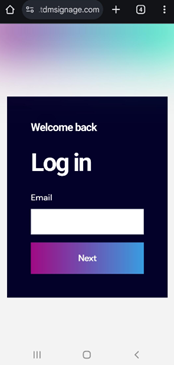
Log in with your TDM5 account to continue.
-
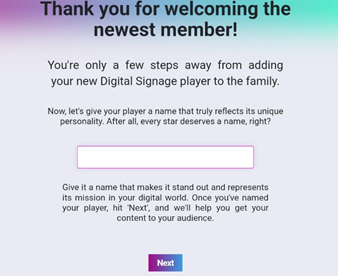
On the next screen, enter a name for your PC player. We recommend using a name that reflects the device’s location to make it easier to identify in the player overview. Press Next once the name has been entered.
-
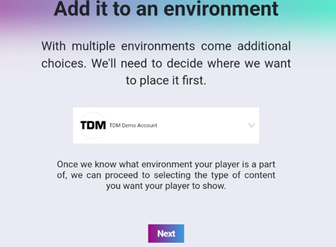
Select the environment you want to add the PC player to. If you only have access to one environment, this step will be skipped automatically.
-
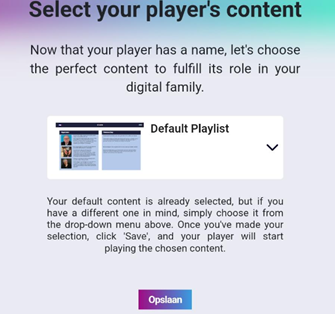
Choose the content you want to link to your PC player. If default content has been configured in your environment, it will be linked automatically.
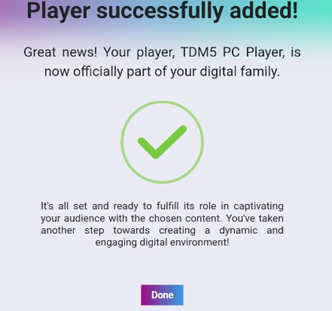
- You have now successfully added the PC player to your TDM5 environment. The player will automatically start displaying the content as soon as the process is complete.