
Introduction
TDM5 allows you to create your own designs using your media files, such as logos and other company assets. There are several ways to access your media files: the built-in TDM5 storage, OneDrive, Dropbox, and Google Drive.
This article explains how to link Google Drive to TDM5.
Requirements
To link Google Drive in your TDM5 environment, you need the following:
-
Access to Designer > Media
-
A Google Drive account
How to link Google Drive
-
Log in to your TDM5 environment.
-
Select Designer.

-
Open the menu option Media.

-
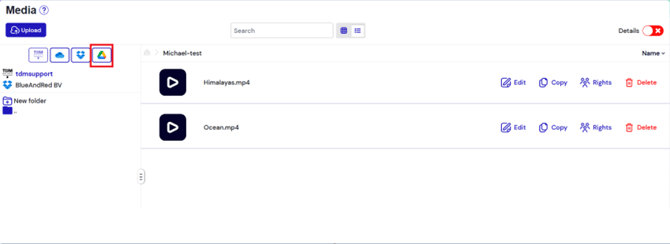
Below the Upload button, select the Google Drive icon.
-
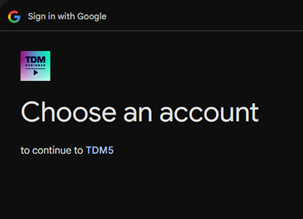
You will be redirected to the Google login page.
-
Select the Google Drive account you want to use.
-
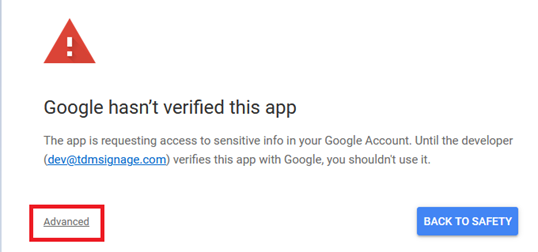
A page will appear saying Google hasn’t verified this app. Select Advanced.
-
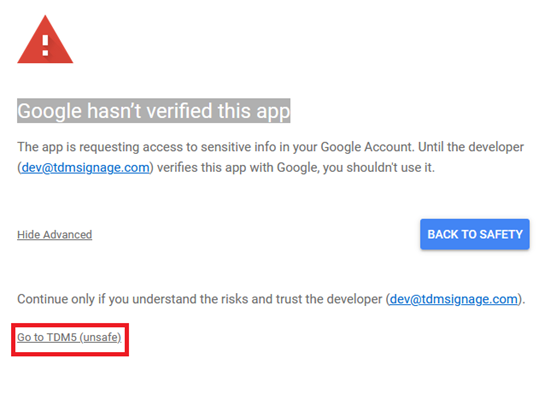
Select Go to TDM5 (unsafe).
-
Agree to allow TDM5 access to your Google Drive and select Continue.
-
You will return to the TDM5 environment, where the connected Google Drive account will now appear.
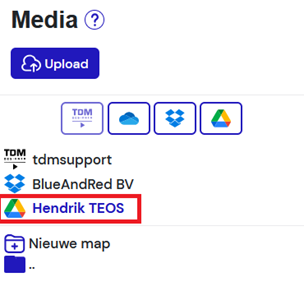
-
In your Google Drive, a folder named TDM5 will be created. This is where your data will be stored.
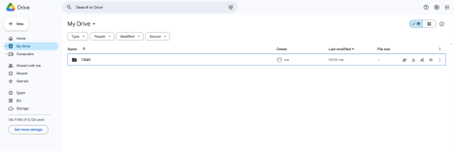
You have now successfully connected Google Drive to TDM5.