
Introduction
TDM5 supports different rights on players. This allows you to assign players to specific users or groups, or exclude them entirely.
Requirements
If you want to set rights for players, you need to meet the following requirements:
-
Access to: Devices > Players
How to set rights for players
-
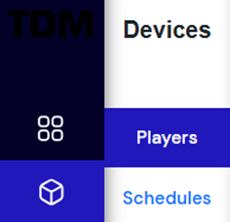
Log in to your TDM5 environment.
-
Select Devices.

-
Select the menu option Players.
-
Click Rights to the right of the player name you want to set rights for.

-
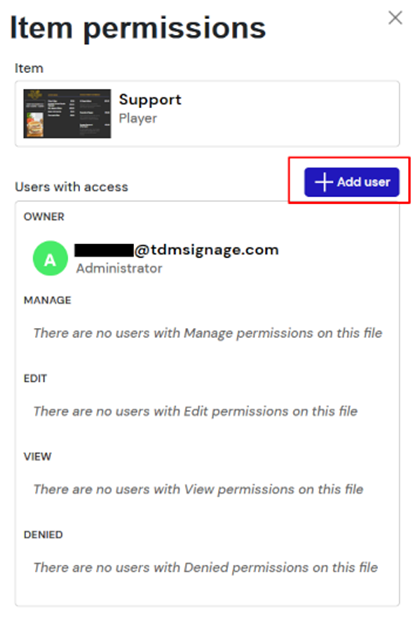
The account owner will always have access to all players. Click Add user to add additional users to the player.
-
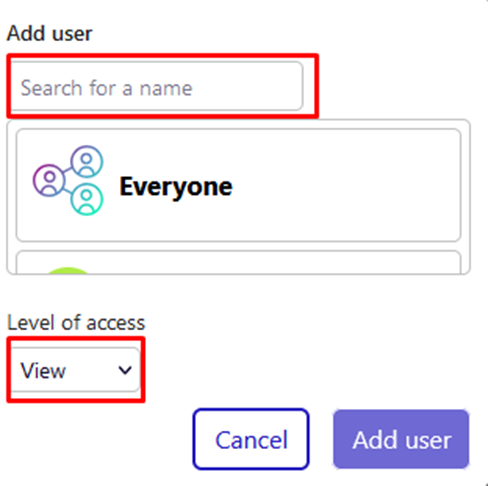
In the next window, search for a specific user or group, or select one from the list. Choose the level of access:
-
View: User can only see the player.
-
Edit: User can see and modify the player (e.g., rename the player).
-
Manage: User can see, edit, and manage the player. This includes setting other content or changing the license.
-
Denied: User cannot see the player.
-
-
Select Add user to complete the process.
You have now successfully set player rights for a specific user or group.