
Introduction
TDM5 allows you to create your own designs, which can then be added to a playlist.
A playlist can include pages or media from your media library. Once a playlist is linked to a player, that player will automatically display all content linked to it.
This article explains how to set access rights for playlists and playlist folders.
Requirements
If you want to set rights for playlists or playlist folders, you need to meet the following requirements:
-
Have access to Designer > Playlists and be able to set rights.
How to set rights for playlists and playlist folders
-
Log in to your TDM5 environment.
-
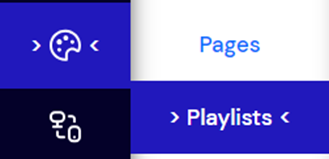
Select Designer.

-
Click the menu option Playlists.
-
Select Rights for the playlist or playlist folder you want to configure.

-
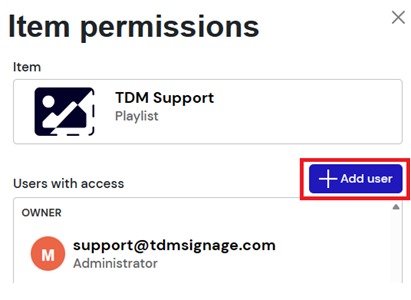
A pop-up window will open — select Add user to configure rights for a user.
-
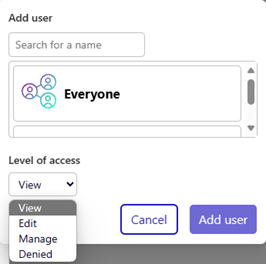
In the next window, select a user and assign the appropriate rights for the playlist. Once finished, press Add user to confirm.
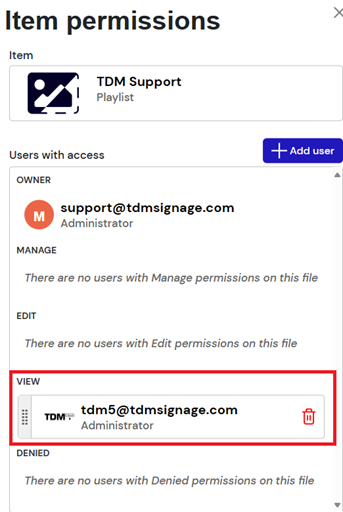
The pop-up will automatically update to display the newly configured rights.
You have now successfully set rights for a playlist or playlist folder. Repeat these steps if multiple users or user groups need access to playlists or playlist folders.