
Introduction
TDM5 allows you to add external data sources. With these data sources, you can display real-time information within your presentations.
This article explains how to set up a custom data source.
Requirements
To set up a custom data source, you need the following:
-
Administrator access to your TDM5 environment
-
All required information about the external data source you want to add
How to set up a custom data source
-
Log in to your TDM5 environment using an administrator account.
-
Select Interactions.
-
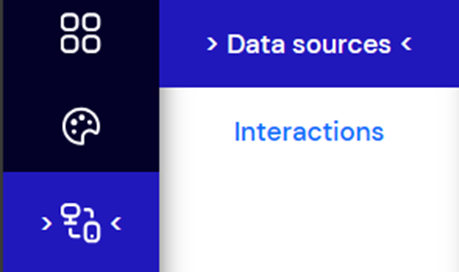
Select the menu option Data sources.
-
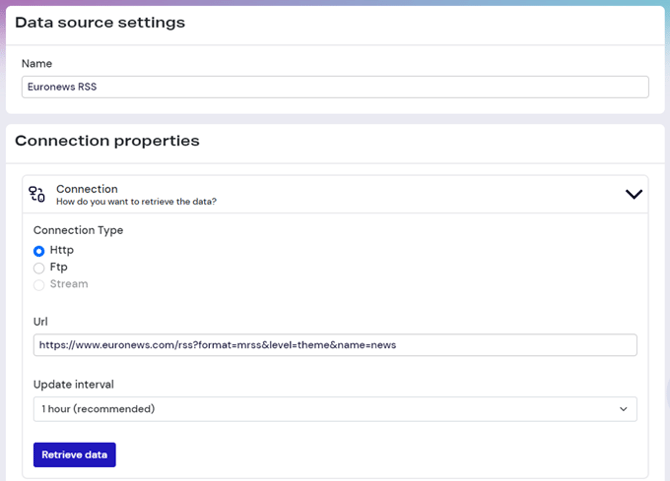
Select Custom and click Create new on the right to create a new data source.

-
In this example, we will use an RSS feed from Euronews that contains the latest European news:
https://www.euronews.com/rss?format=mrss&level=theme&name=newsEnter the following values:
-
Name: Euronews RSS
-
Connection type: HTTP
-
URL: https://www.euronews.com/rss?format=mrss&level=theme&name=news
-
Update interval: 1 hour
Click Retrieve data.
-
- A preview of all values will appear in the Choose your properties dropdown. Select the values you want to use for your content.
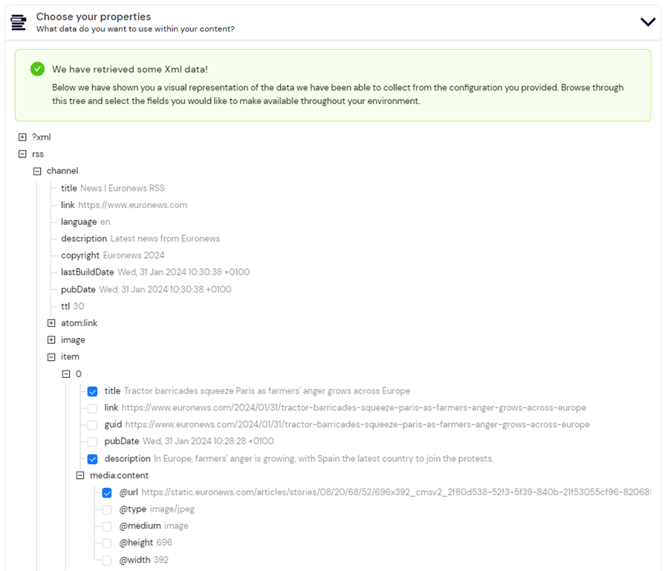
Once a value is selected, a preview will be shown on the right side of the screen.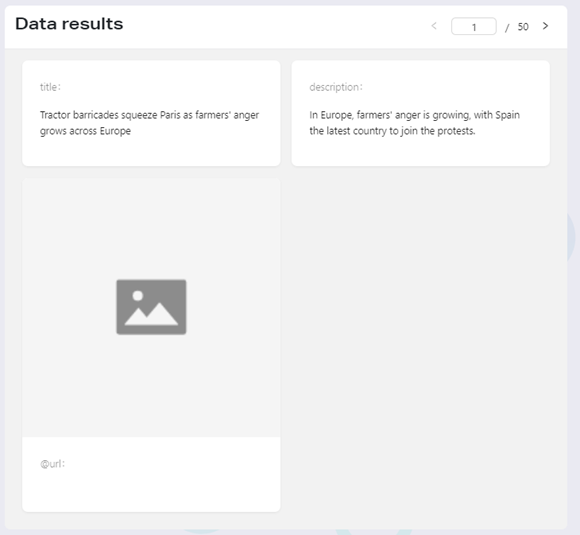
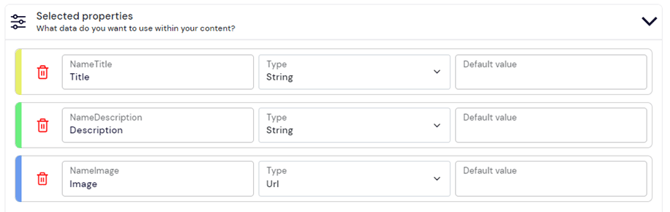
- You can also assign custom names to values in the Selected properties dropdown. These names will appear when using the data source in your design. Optionally, you can set a default value for rows that do not contain any information (in this example, we leave this empty).
You have now successfully created a custom data source, which can be used in your design.
For more information on using external data sources, see our guide: TDM5 - How to link a data source to an element.