
Introduction
TDM5 offers the ability to add external data sources. With these data sources, TDM5 can display real-time information within your presentation. This manual explains how to set up a Google Calendar data source.
Requirements
If you want to set up a Google Calendar external data source, you need to meet the following requirements:
-
Administrator access to your TDM5 environment
-
Access to the Google account that has the required permissions for the Google calendars
-
All necessary information regarding the Google calendars you want to add
How to set up a Google Calendar data source
-
Log in to your TDM5 environment using an administrator account.
-
Select Interactions.
-
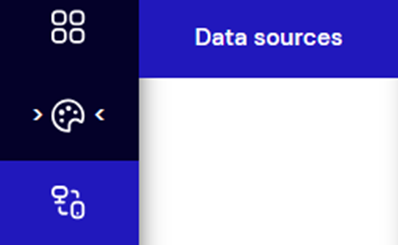
Select the menu option Data sources.
-
Select Google Calendar and click Create new to add a new data source.

-
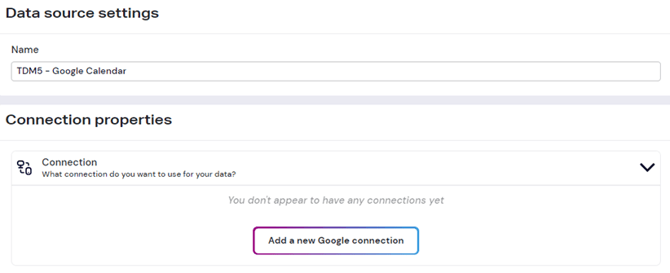
Enter a name for your data source, for example TDM5 – Google Calendar, and select Add a new Google connection.
-
You will be redirected to the Google login page. Log in with the account where the OAuth 2.0 credentials have been created.
-
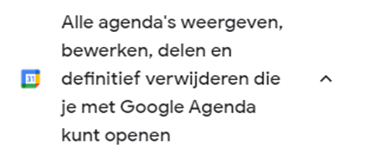
Follow the process and accept any messages regarding the information shared with TDM5. These permissions are required to read calendar information. Make sure you select the calendar service, otherwise TDM5 will not be able to access calendar data.
-
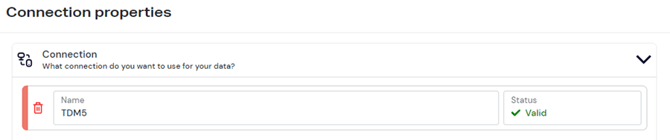
You will be redirected back to TDM5. If everything went correctly, your account will now be visible and the status will show as Valid.
-
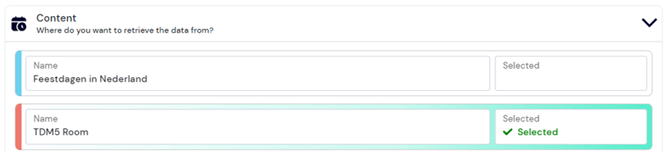
Select your account to make the Content dropdown menu visible. From this menu, select the calendar you want to use as the data source.
-
On the right side of the page, you will see a preview of your data source. Use the arrows to view all meetings from your Google Calendar.
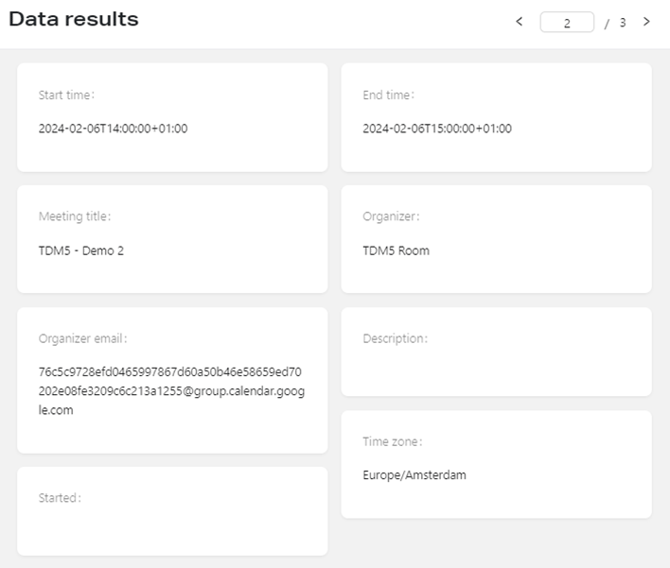
You have now successfully created a Google Calendar data source, which can be used in your design.
Repeat this process if multiple calendars (e.g., rooms) need to be added.
For more details on how to use external data sources in your designs, see our manual TDM5 – How to link a data source to an element.