
Introduction
TDM5 offers the ability to add external data sources. With these data sources TDM5 offers the ability to display real-time information within your presentation.
This manual will explain how a LinkedIn data source can be setup.
Requirements
If you want to set up a LinkedIn data source, you need to meet the following requirements:
-
Administrator access to your TDM5 environment
-
Access to a LinkedIn account
How to set up a LinkedIn data source
-
Log in to your TDM5 environment using an administrator account.
-
Select Interactions.
-
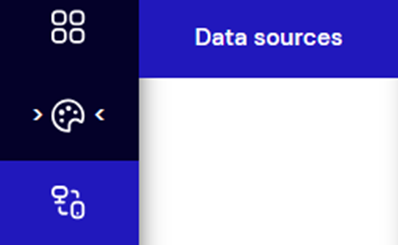
Select the menu option Data sources.
- In the top right select “Create new data source”

-
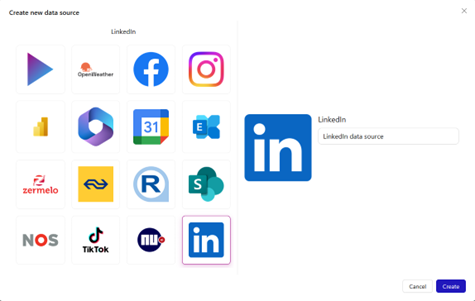
Choose LinkedIn, fill out a name and press the Create button to the right to create a new data source.
-
Once created open the “Connection properties” and select “Add a new LinkedIn connection”.

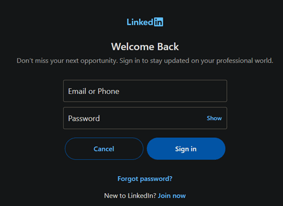
- This will open the LinkedIn login page, login with the desired account.
- After entering your login details select “Allow”.
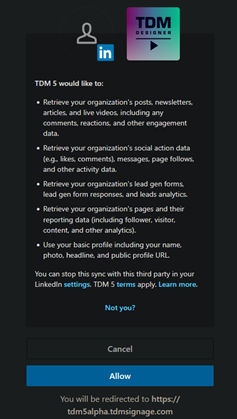
- You will then be redirected back to the data source page, click the connection that has just been made and select save.

- Now the “Organization” selection will appear, select the organization you want to display.

- After saving the selection “Data results” should appear on the right side of the page, this information can be used in the designer.
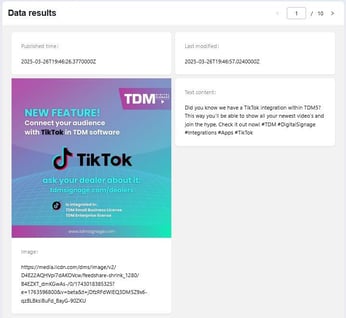
You have now successfully setup a LinkedIn data source.