
Introduction
TDM5 offers the ability to add external data sources. With these data sources, TDM5 can display real-time information within your presentation. This manual explains how to set up a SharePoint data source.
Requirements
If you want to set up a SharePoint data source, you need to meet the following requirements:
-
A TDM5 Enterprise subscription
-
Administrator access to your TDM5 environment
-
The ability to consent to Office365 permissions on behalf of your organization
-
Access to the SharePoint site you want to link to TDM5
How to set up a SharePoint data source
-
Log in to your TDM5 environment using an administrator account.
-
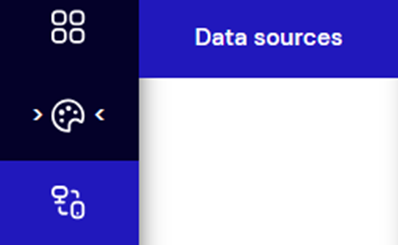
Select Interactions.

-
Select the menu option Data sources.
-
Select SharePoint and press Create new on the right to create a new data source. Enter a name and press Add.

-
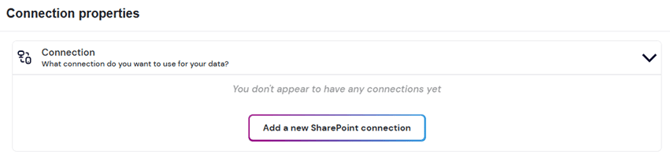
A new page will open where the SharePoint data source can be configured. Select Add a new SharePoint connection.
-
You will be redirected to the Office365 login page. Log in with your account. Review and grant the requested permissions. If you are unable to consent, contact your IT department, as elevated permissions are required to proceed.
.png?width=322&height=364&name=mceclip4%20(1).png)
-
After granting permissions, you will be redirected back to TDM5.
-
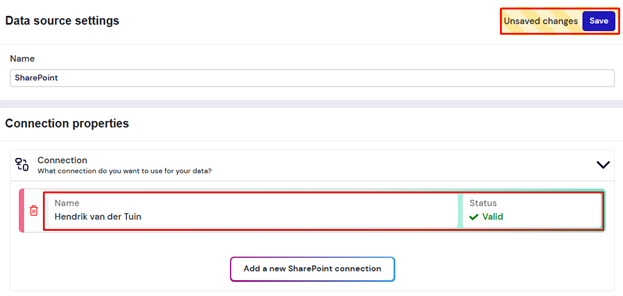
Your SharePoint connection should now be visible with the status Valid. Select the connection (it will be highlighted in green). Once highlighted, the Save button will appear. Press it to continue.
-
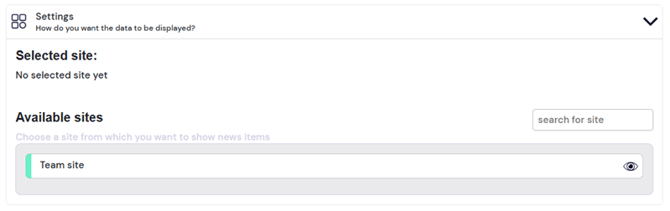
In the settings window, select the SharePoint site you want to use. If the window remains empty, manually refresh the page with F5.
-
After selecting the site, press Save again to connect with the chosen site.

-
A preview of the linked information will now appear on the right side of the screen.
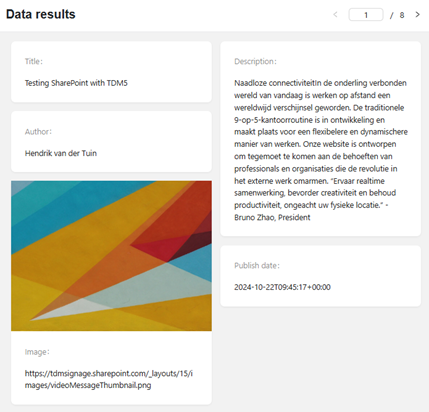
You have successfully set up your SharePoint data source. You can now link these values to elements within your page design.