
Introduction
TDM5 offers the ability to setup an interactive room booking solution. This example will show you how to setup and configure room booking.
Requirements
If you want to create a room booking solution you need to:
- Have content manager access or above to your TDM5 environment
For an interactive solution you will also need:
- Compatible tablet or display with touch functionality and optional LED support
How to setup room booking
- Login to your TDM5 environment
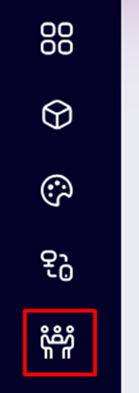
- Navigate to ‘Rooms’.
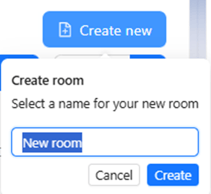
- Click ‘Create New’ and enter a name for your room
- To select a calendar, click on ‘No calendar selected’ to select the desired calendar.
- If there are no calendars to be selected you will need to setup one first. Select ‘New Microsoft 365’ in order to setup an Office 365 calendar data source. For more information on this please refer to our guide to setup Office365:
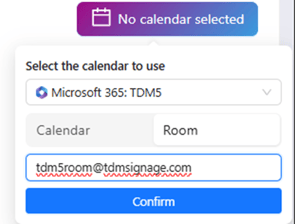
helpdesk.tdmsignage.com/tdm5-how-to-set-up-an-microsoft365-source - When selecting the desired Office account you will get the option to either select a calendar or room or to create an entirely new calendar within this account.
- Select you calendar and click ‘Confirm’.
- If the calendar connection is valid you will see your calendar items appearing in this screen.
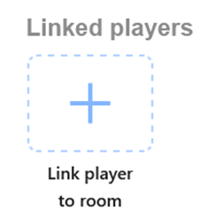
- Now you can select a device to use for your new room booking setup. Click on the ‘Link player to room’ icon in order to select the desired player.
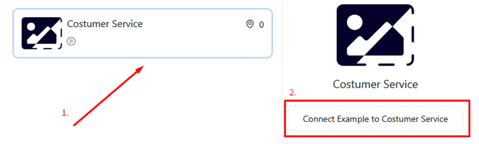
- Select your player and click on the button to connect your newly setup room to your player and click on ‘OK’.
- If there is no content selected yet you can click on the blue pencil icon above your player to select a page for your display. You can either select one of the pre-defined pages or create a new page from scratch using the TDM content creator.
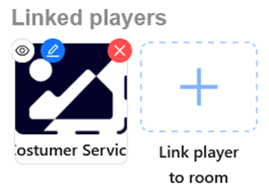
You know have successfully setup a room booking solutions
Content
Room booking properties can be found in the properties menu. This can be found on the right side for multiple elements.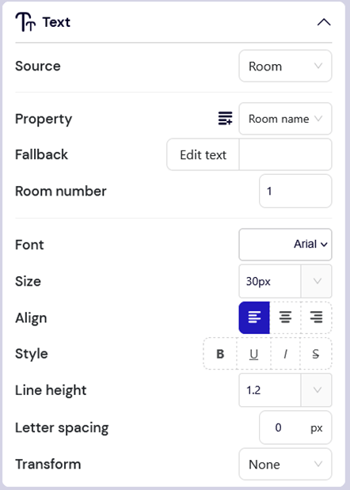
If you need help creating a new room booking page from scratch or modifying an existing one, please refer to one of our guides on how to created pages and how to use the room booking specific elements found in our knowledgebase.
Here you can also find more information on conditional features like hiding certain elements when a meeting has started.