
Introduction
TDM5 supports authentication through Single Sign-On (SSO).
Enabling SSO allows administrators to manage all users and roles directly from their own Azure AD.
Requirements
To set up Single Sign-On (SSO), you need:
-
Administrator access to your TDM5 environment
-
Administrator access to your Azure AD
-
Groups set up in Azure AD for synchronization
Create your Azure application
- Log in as an administrator in your Azure portal: https://portal.azure.com/
- Navigate to "App Registrations".
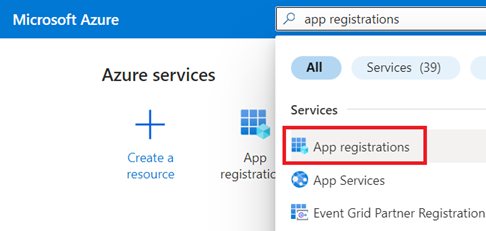
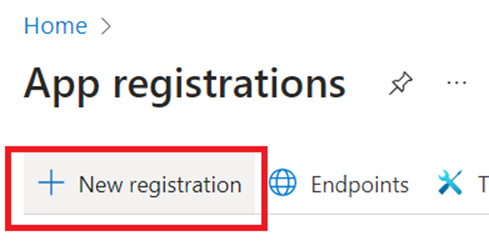
- Create a new "App Registration".
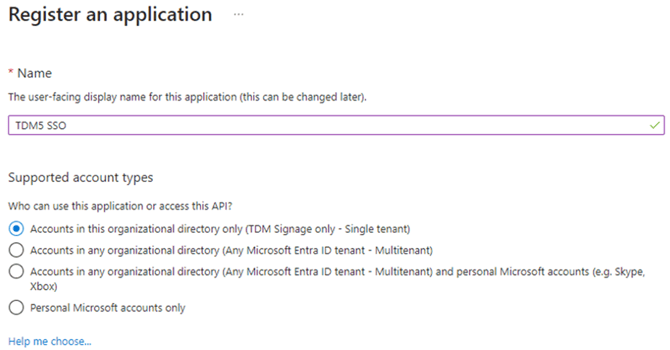
- Give your application a name and select that it is available for your Tenant only. Now click "Register".
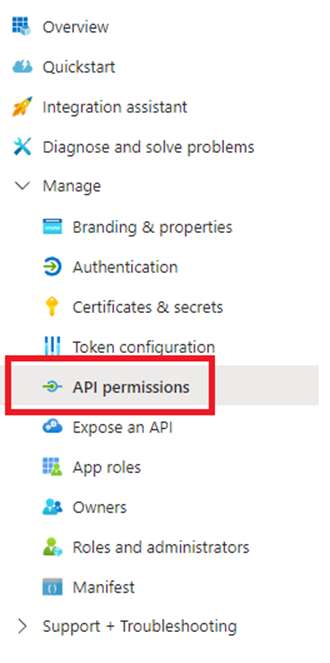
- After the app is created, it opens the "App Overview". Navigate to "API Permissions" in the left bar.
- Next, select “Add a permission”. In the pop-up, select “Microsoft Graph”. Next, select “Delegated permissions”.
In the next menu, select the following permissions, and press “Add Permissions”:
- Email
- Openid
- Profile
- User.read
Now, press “Add a permission” again, select “Microsoft Graph” and now choose “Application Permissions”. In the next menu, choose the following permissions and press “Add Permissions”:
- Domain.Read.All
- GroupMember.Read.All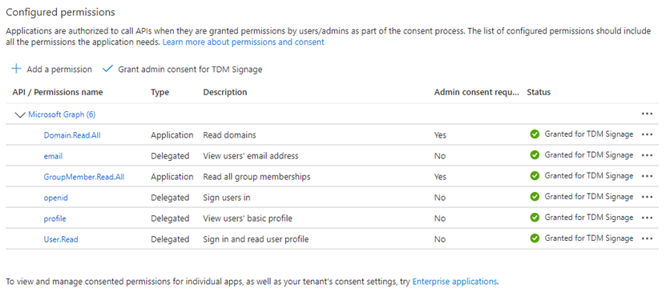
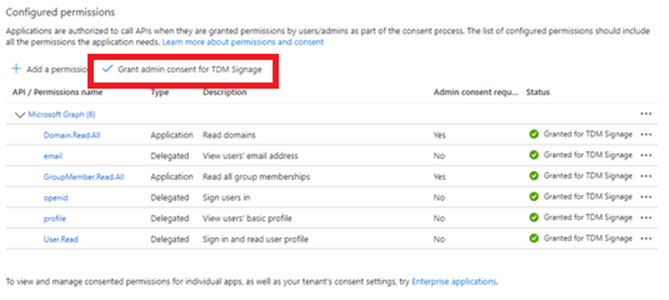
- Finally, click on “Grant admin consent for <Tenant Name>” to grant permissions for your tenant.
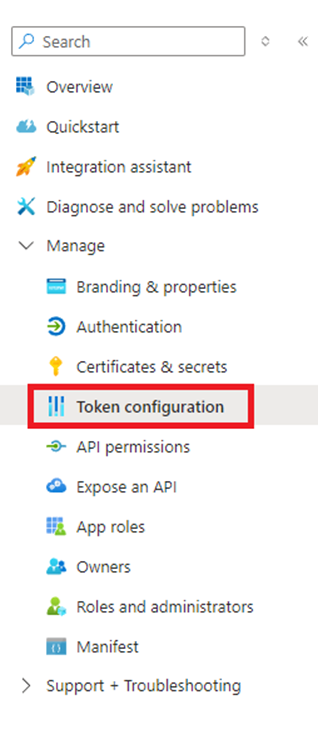
- Now navigate to “Token configuration” in the left bar.
- Select “Add optional claim”, in the pop-up, choose for token type “ID”, claim “email”. Next, press "Add".
- Now select “Add groups claim”, in the pop-up select “Security Groups”, and below SAML, make sure this is set to “Group ID”. Now press "Add" to add the claim.
This should now look like below: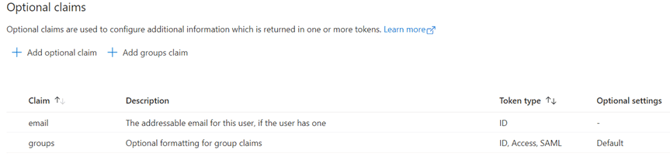
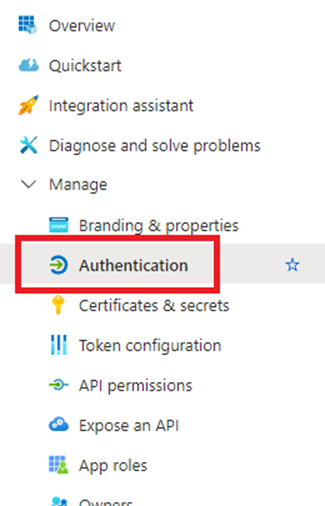
- For the next step, we navigate to ‘Authentication’.
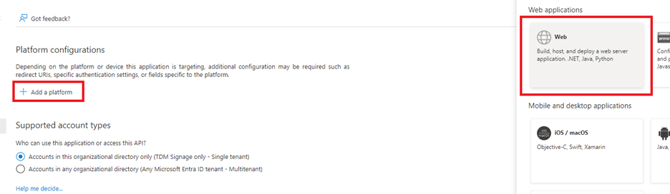
- Select “Add a platform” and choose “Web”.
- Enter the Redirect URL: https://tdm5.tdmsignage.com/signin-oidc-{client-id}.
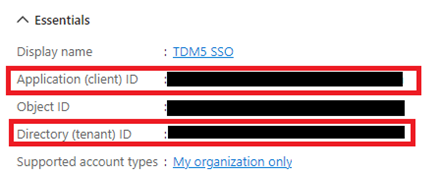
The client ID can be found on the "Overview" page of the Azure application. Make sure the checkbox for ID tokens is also enabled.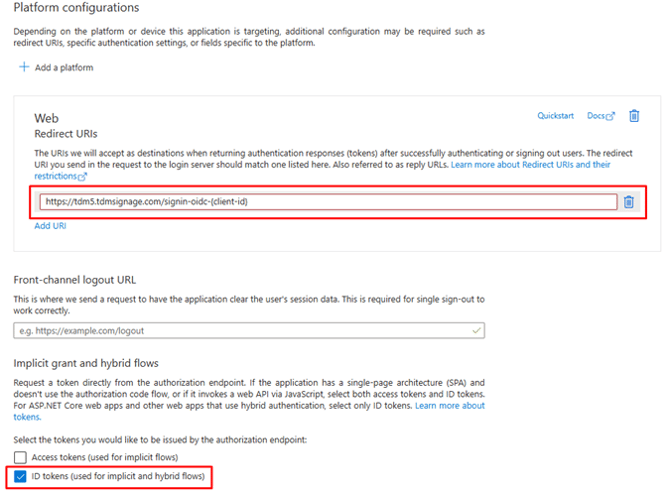
- In case you forgot to enable the ID Tokens in the previous step, you can still enable this in the "Authentication" menu.

- Next, navigate to the menu “Certificates & Secrets”.
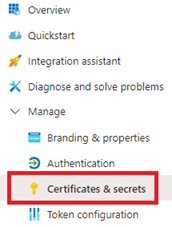
- Select the “Client secrets” submenu, and choose to create a new client secret. Give your secret a description, choose an expiration date and press “Add”. The shorter the date, the faster you will need to create a new secret and update your configuration in TDM.
After creation, copy down the key in the “Value” column. You can only see this value now; on later visits, you can only see the first three characters to help identify your secret.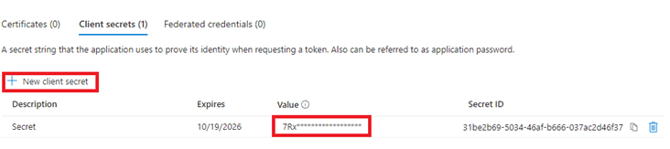
- Next, navigate to the main overview.
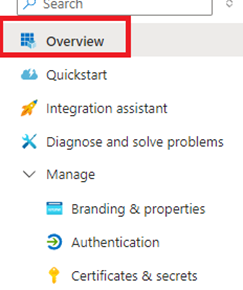
- Note down your Application (client) ID and your Directory (tenant) ID as we will need these, together with the client secret, to configure SSO in TDM5.
How to Set Up SSO in TDM5
- Log in as an administrator in your TDM5 portal and go to your "My Environments" page.
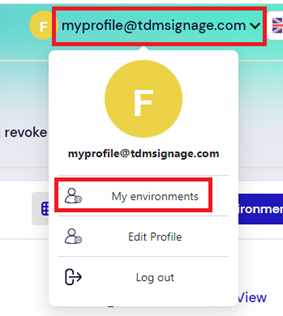
- Select the SSO configuration menu in the sidebar.

- Next, fill in the Client ID and Secret from the App which we created in Azure. For the authority, fill in the following URL: “https://login.microsoftonline.com/<tenantID>” where <tenantID> is the ID of your Azure tenant, which we also found during the creation of the Azure application.
Afterwards, press "Save and Check".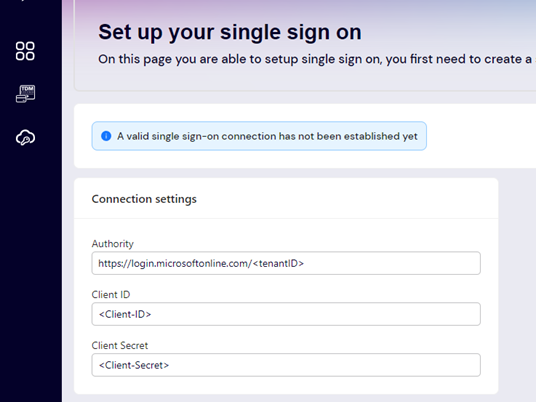
- If all credentials are correct, the settings will be saved, and there will be SSO options to configure.
In the domain settings, you can add or remove the domains of the users you would like to be able to log in with SSO.
The domains configured here are used to determine if a login attempt should use SSO or not.
In Role management, you can select the role from Azure AD that you would like to link to TDM5. The following field determines to which environment these users should have access. At the end of the link, you can configure which role these users should receive in the environment.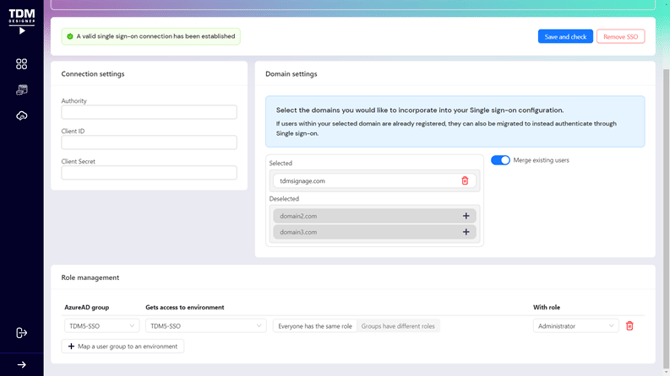
Finally, press "Save and check". Your SSO configuration is now set up.