
Introduction
TDM5 allows you to create your own designs using your media files, such as logos and other company assets. There are several ways to access your media files: the built-in TDM5 storage, OneDrive, Dropbox, and Google Drive.
This article explains how to unlink OneDrive from TDM5.
Requirements
To unlink OneDrive in your TDM5 environment, you need the following:
-
Access to Designer > Media
-
An active OneDrive account already linked as media storage
How to unlink OneDrive
-
Log in to your TDM5 environment.
-
Select Designer.

-
Open the menu option Media.

-
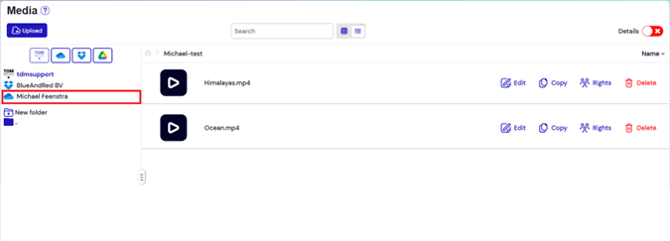
In the media library, folders are shown on the left side. Hover your mouse over the OneDrive folder.
-
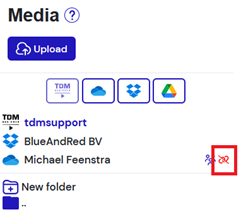
Select the red Unlink button.
-
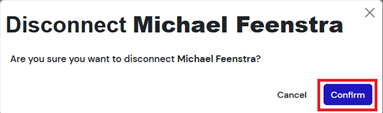
A confirmation pop-up will appear. Select Confirm to proceed.
-
A message will appear confirming that OneDrive has been disconnected.

You have now successfully unlinked your OneDrive account from TDM5.