
Introduction
As a reseller, you have access to the TDM5 Reseller Portal. From this portal, you can create and manage customers, control access to customer accounts, add or extend licenses, and manage your orders.
This guide walks you through all the menu items and explains the options available in the Reseller Portal.
Requirements
To use the Reseller Portal, you need the following:
-
Access to the Reseller Portal (this can be requested by contacting support@tdmsignage.com)
-
Log in to your TDM5 environment using your reseller account.
-
You will automatically be redirected to the Management Dashboard.
On this page, you will see an overview of your customers, orders, licenses, and modules.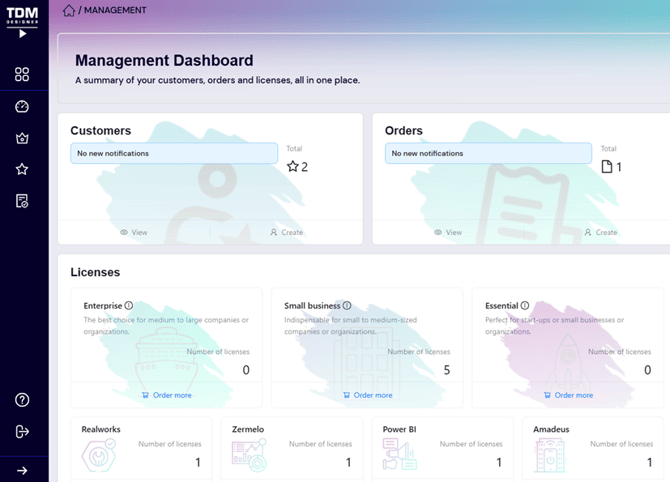
-
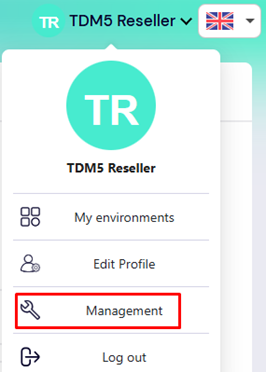
You can also access the Reseller Portal from the menu. To do this, open the menu in the top-right corner and select your account name.
-
On the left side, you will find the Reseller Portal menu. It contains the following items:
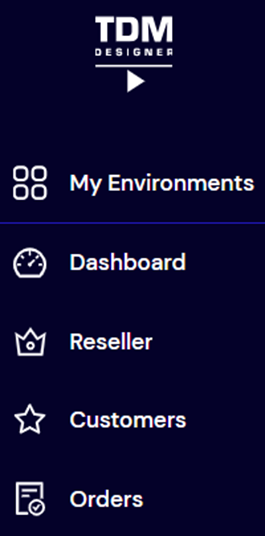
My Environments:
Opens the environment overview page, showing a list of all environments your account has access to.Dashboard:
Opens the Management Dashboard, where you can view an overview of your customers, orders, licenses, and modules.Reseller:
Opens the page where you can configure your reseller information. Here, you will also find an overview of your available licenses, customers, and users with access to your reseller environment. From this page, you can also invite additional users.Customers:
Opens the customer overview page, where you can manage existing customers and create new ones. You can also create orders, add licenses, and add environments for your customers.Orders:
Opens the order overview page, where you can view your orders. From here, you can create new orders, pay or cancel outstanding orders, and review past orders. -
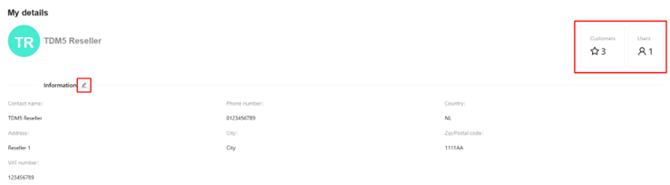
Reseller Page: We will start with the Reseller page. Once selected, you will see your contact details along with an overview of the total number of customers and users who have access to your reseller portal.
You can update your contact information here if needed.
-
Below your contact details, you will find a quick overview of your most recent orders, along with their status. From here, you can search for an order, create a new order, or navigate to the order page to view the details of a specific order.

-
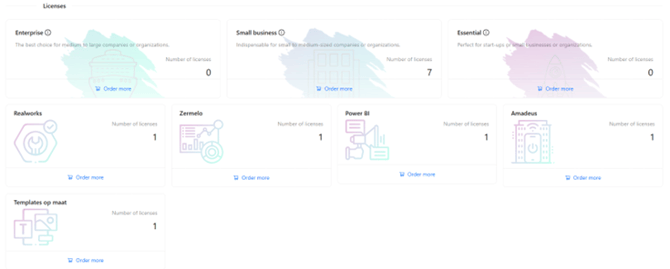
Below the orders, you will see an overview of the licenses available to you. Under each license type, you will find an Order more option, which can be used to purchase additional licenses.
-
Below the licenses, you will see an overview of your customers. From here, you can view, edit, or search for customers.

-
At the bottom of the page, you will see an overview of the users who have access to your reseller environment. From here, you can add new users or invite existing users to your environment.

-
Customers Page: On this page, you will find an overview of your customers. When you select a customer, you can view their contact details, order history, number of licenses, and environments.
From this page, you can also create new customers, place new orders for customers, add or extend licenses, and request or claim access to a customer environment.
-
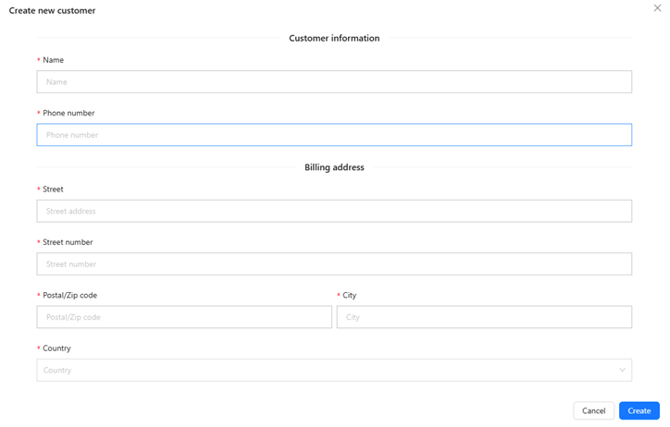
We will start with creating a new customer. To do this, click the Create New button.

-
A new window will open where you can enter the contact details. Once all fields are completed, click Create to add the customer.
-
After the customer is created, you will automatically return to the customer overview. The new customer will now appear in the list.
-
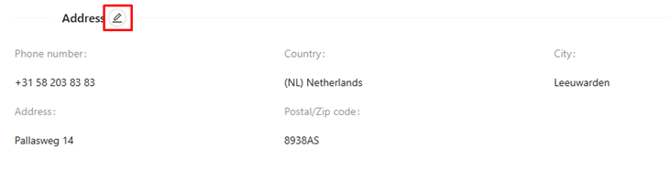
Next, we will continue with editing an existing customer. When you select a customer, their contact details will appear at the top. These can be edited using the pencil icon.
- Below the customer details you will find an overview of the licenses. From here you can add or extend licenses.

-
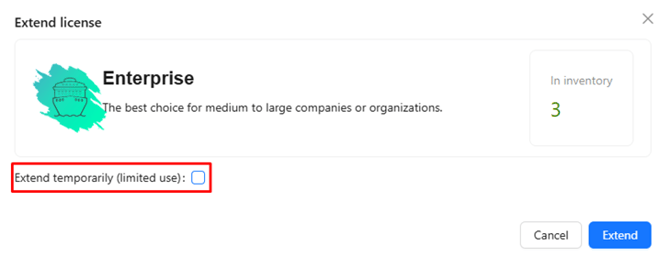
The Extend option also allows you to temporarily extend licenses for two weeks. This can be useful if licenses are about to expire but the renewal order has not yet been processed.
-
At the bottom of the page, you will see an overview of the environments created for the customer. For example, a school may have multiple environments for each location.

-
With the Request access option, a URL will be generated that you can share with the customer. Once the customer logs into TDM5 and opens the URL, they can grant the reseller access to their environment.

-
In case of emergency, you can also use the Claim access option. This will grant you access to the environment but will also trigger a notification that is sent to the customer and the TDM administrators.

-
For new customers, these options are available by default. You can use the Manage option to invite users to access the environment.

- Orders page:
On the Orders page, you will find an overview of all your orders. When you select an order, you can view all related details such as invoice information, address details, and the license types included in the order.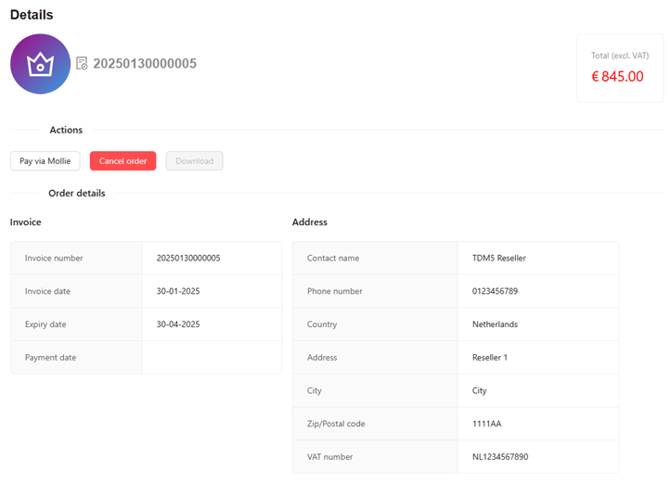
-
You can cancel orders if they have not yet been processed by clicking the Cancel order button.
.png?width=430&height=120&name=blobid1%20(1).png)
-
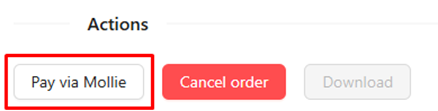
Depending on your options, you can also pay for an order through Mollie by selecting Pay via Mollie. Once the payment is complete, the licenses will automatically be linked to your account.
We have now walked through all the options available in the Reseller Portal.
If you have any further questions, please contact support@tdmsignage.com.